

13,802
likes
194
comments
daily view 0
monthly view 0
Live Analytics
Comments 0
How to Use GarageBand - Tutorial for Beginners Analytics Table
Income Estimates for How to Use GarageBand - Tutorial for Beginners
Based on this YouTube video's total view count of 816K views and industry-standard rates, the estimated total earning is $571 - $1.63K through ad revenue. Historical data is not yet available to calculate daily, weekly, or monthly averages.
About How to Use GarageBand - Tutorial for Beginners
Explore How to Use GarageBand - Tutorial for Beginners with 816,136 views, 13,802 likes, and 194 comments. Experience the impact of this video content that has captured audience attention.
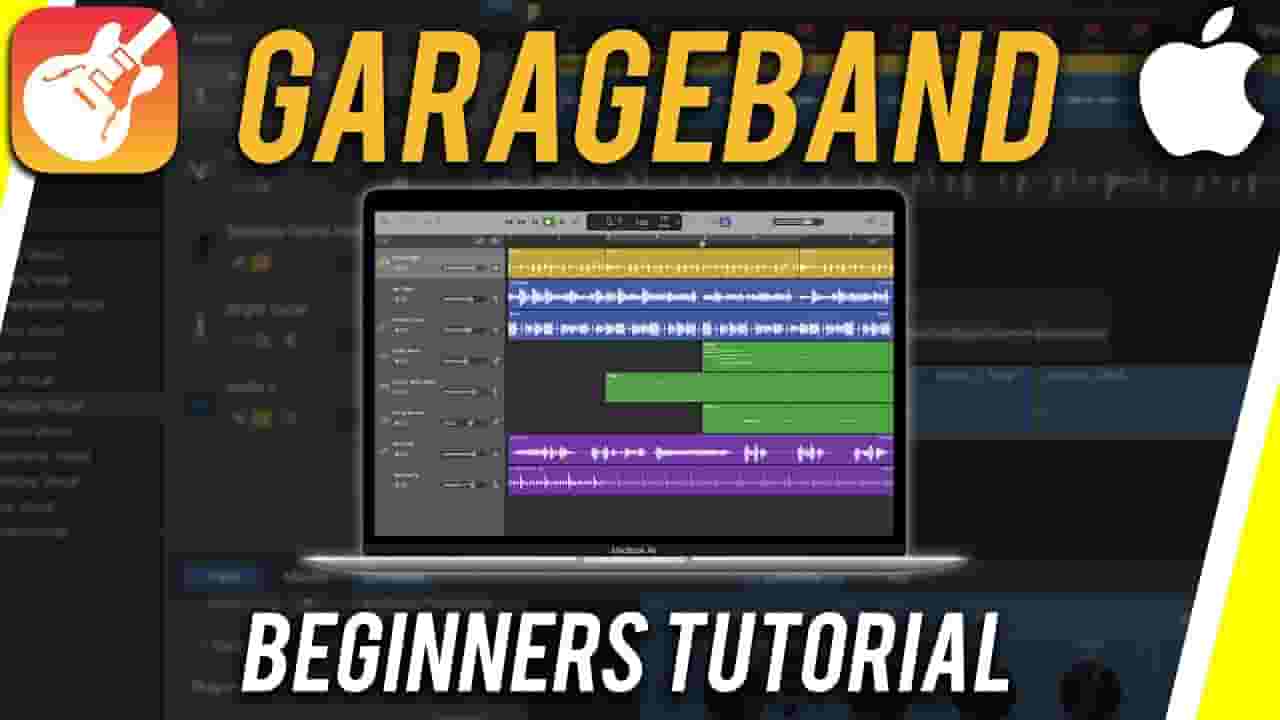
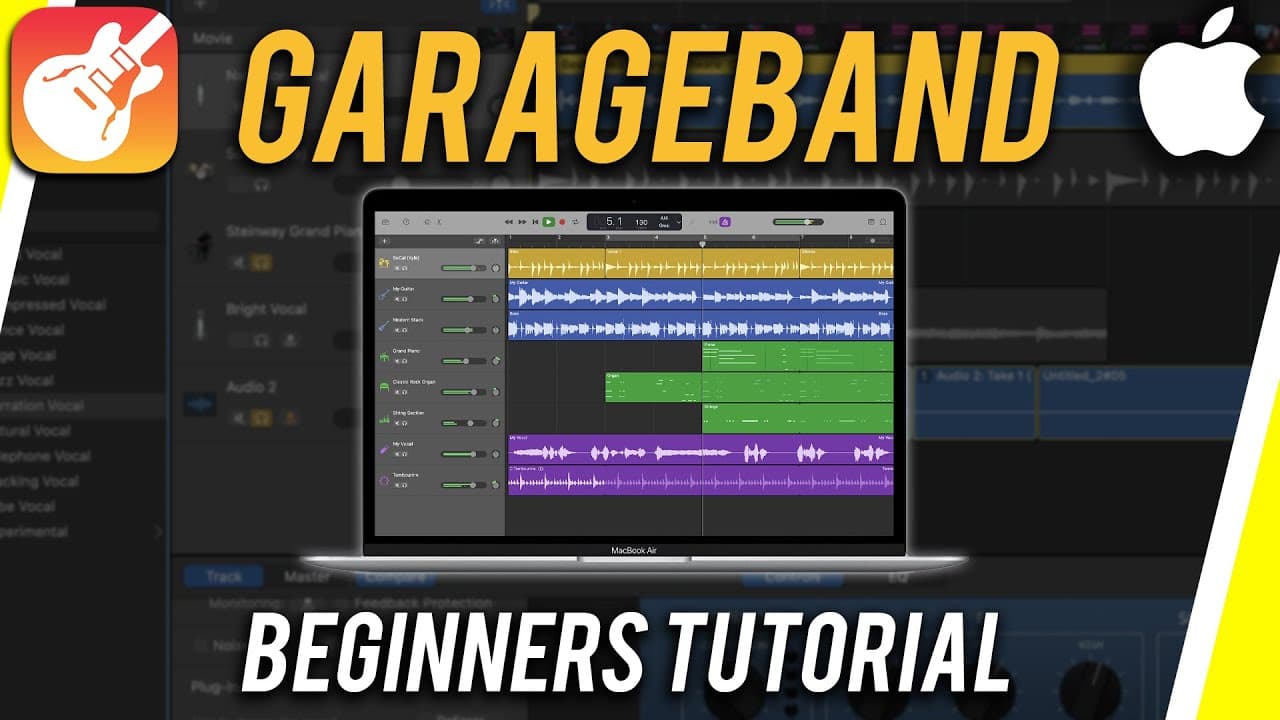
GarageBand is a fully equipped music creation studio. GarageBand comes with every Mac and there is an app for it as well for iPhones and iPad. https://www.apple.com/mac/garageband/ In this video, I’ll show you 7 easy steps, on how to get started with GarageBand on your Mac for creating music or recording vocals and podcasts. 1. Creating a project/project setup When you first launch GarageBand, you’ll need to create a project. Then, choose what type of project you want, from recording a guitar to recording vocals or drummer. You can preview the track by pressing the space bar. You can also change your drummer here and pick a different style from the library tab. 2. Adding tracks and loops To add another track, you can press the plus sign and you can add a vocal track or another instrument track. If you don’t have a keyboard, you can also use the virtual keyboard in the GarageBand by using Command+k. 3. Recording Vocals or Voiceover When adding a vocal track, make sure you have a microphone that is plugged into a sound mixer or directly to your computer. 4. Editing a track You can edit any track by splitting the track and deleting the unwanted parts. 5. Movie tracks You can also bring in movie tracks if you are composing a song to go along with a video or film. 6. Using effects and mixing To mix your track, simply work with the audio levels on each track. Each of your tracks also has a plugin or effects panel that you can bring up with Command+B. 7. Exporting and sharing You can export your finished project using Wave or MP3 file formats. Simply go to the share menu and choose export to disk. Thank you for watching this video!
About YouTube Real-Time View Count
With SocialCounts.org’s view counter, track your YouTube video’s live view count and YouTube likes count in real time with fast, reliable updates.
Watch every YouTube video live view count rise with our real-time YouTube views tracker—built for accuracy and minimal delay.
Follow YouTube real time views as they happen, using our dedicated view counter for YouTube videos.
Get up-to-date live view count on YouTube and see real-time growth with SocialCounts.org’s smart tracking tools.
Embed Widget
Parameters:
fullscreen=true- Fullscreen countergraph=true- Live graph chartcounter=0/1/2- Select counter (0=likes, 1=views, 2=comments)
URL
Click to copy the embed URL to your clipboard