


635
likes
12
comments
daily view 0
monthly view 0
Live Analytics
Comments 0
How to Enable Voice Typing on Android 1 - Full Video Linked for All Info Analytics Table
Income Estimates for How to Enable Voice Typing on Android 1 - Full Video Linked for All Info
Based on this YouTube video's total view count of 112K views and industry-standard rates, the estimated total earning is $79 - $225 through ad revenue. Historical data is not yet available to calculate daily, weekly, or monthly averages.
About How to Enable Voice Typing on Android 1 - Full Video Linked for All Info
Explore How to Enable Voice Typing on Android 1 - Full Video Linked for All Info with 112,547 views, 635 likes, and 12 comments. Experience the impact of this video content that has captured audience attention.
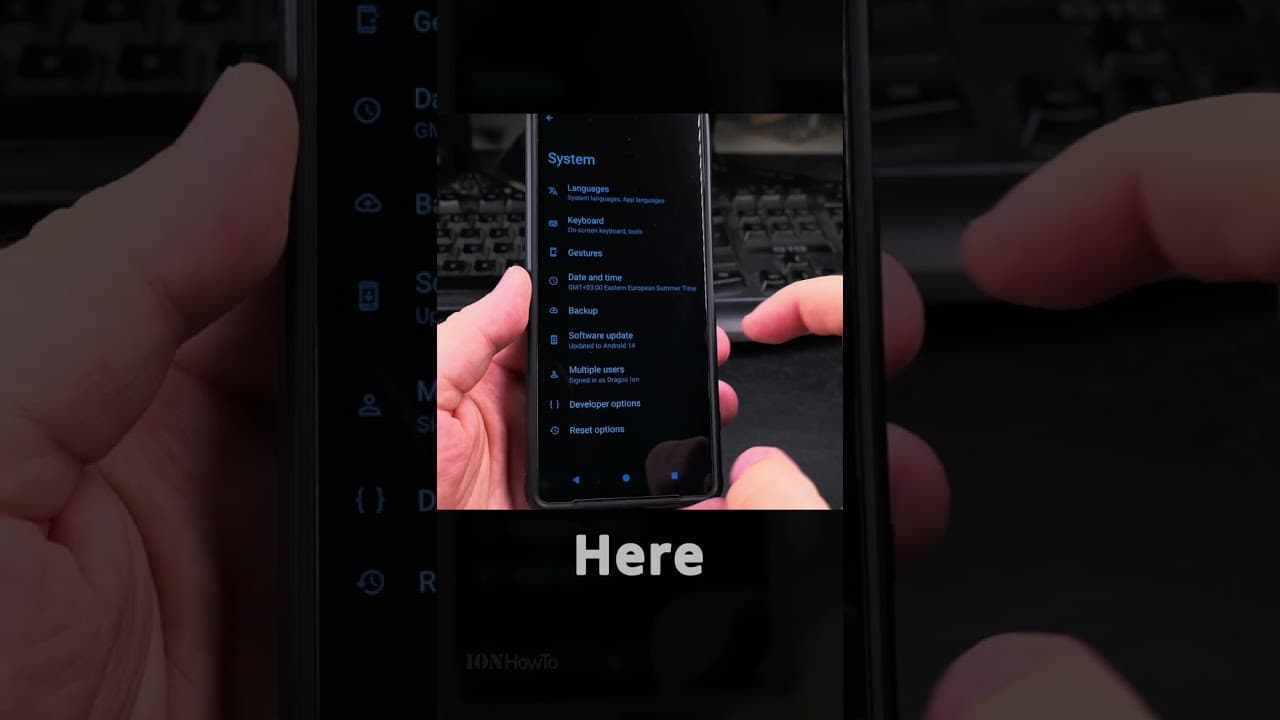
How to Enable Voice Typing on Android Gboard Complete Guide. In this video, I will guide you through the process of enabling voice typing on Gboard, the Google keyboard for Android devices. Voice typing can significantly enhance your productivity by allowing you to dictate text instead of typing it manually. This feature is especially useful for those who prefer hands-free operation or need to type quickly. Amazon:* SIM card removal tool https://rex.red/sim-card-removal-tool SIM card holder https://rex.red/SIM-card-holder SIM card adapter https://rex.red/SIM-card-adapter iPhone case https://rex.red/iPhone-case Android phone case https://rex.red/Android-phone-case Newest android phone https://rex.red/newest-android-phone Newest iPhone https://rex.red/newest-iphone Newest iPad https://rex.red/newest-ipad Newest android phone https://rex.red/newest-android-phone Newest android tablet https://rex.red/newest-android-tablet To enable voice typing on Gboard, follow these steps: 1. Install Gboard: If you haven't already, download and install Gboard from the Google Play Store. Open the app and set it as your default keyboard. 2. Open Settings: Go to your device's settings and navigate to "System" or "Language & Input," depending on your Android version. 3. Select Gboard: Under "Keyboard & Input Methods," select Gboard and then tap on "Preferences." 4. Enable Voice Typing: In the preferences menu, find and enable the "Voice typing" option. You may need to grant microphone permissions if prompted. 5. Activate Voice Typing: Open any app where you can type, such as Messages or Gmail. Tap on the text field to bring up the keyboard, then tap the microphone icon to start voice typing. Speak clearly, and your words will be transcribed into text. Enabling voice typing on Gboard is important because it allows for a more efficient and convenient way to input text. This feature is particularly beneficial for multitasking, as it lets you dictate messages while performing other tasks. Additionally, voice typing can be a great accessibility tool for individuals with disabilities, making it easier for them to communicate and interact with their devices. This video covers topics such as how to enable voice typing on Android Gboard, setting up Gboard for voice input, and using voice commands on Gboard. These steps are essential for anyone looking to optimize their Android device for hands-free operation and improve their overall typing experience. By following this guide, you will learn how to enable voice typing on Gboard and take advantage of this powerful feature. Watch the video carefully without skipping to see all the steps needed in this video. Subscribe and click the Bell to watch more videos. IONHowTo https://www.youtube.com/channel/UCx4Qbp3iC97kQzj7e7g7slg RedNumberONE https://m.youtube.com/channel/UCYdm-YlcfOvCbKeh60EkMZg Buy merch https://store.ionhowto.com/ Check it, buy it, post it and tag it #ionhowto or #rednumberone Join this channel to get access to perks: https://www.youtube.com/channel/UCx4Qbp3iC97kQzj7e7g7slg/join Contact for business enquiries Only diyrno (at) gmail.com Any questions? Feel free to ask in the comments section below. Subscribe, Like and SHARE this video with your friends! We earn money from qualifying purchases using our affiliate links. Affiliate links are marked with a star. * When you use our * links, you support this channel. As an Amazon Associate I earn from qualifying purchases. Website https://www.ionhowto.com/ Food Recipes: https://www.rednumberone.com/
About YouTube Real-Time View Count
With SocialCounts.org’s view counter, track your YouTube video’s live view count and YouTube likes count in real time with fast, reliable updates.
Watch every YouTube video live view count rise with our real-time YouTube views tracker—built for accuracy and minimal delay.
Follow YouTube real time views as they happen, using our dedicated view counter for YouTube videos.
Get up-to-date live view count on YouTube and see real-time growth with SocialCounts.org’s smart tracking tools.
Embed Widget
Parameters:
fullscreen=true- Fullscreen countergraph=true- Live graph chartcounter=0/1/2- Select counter (0=likes, 1=views, 2=comments)
URL
Click to copy the embed URL to your clipboard