

How to Setup the New Private Space Feature in Android 15 to Hide Secret Apps & Games?
33,868
Socialcounts.Org
272
likes
90
comments
daily view 0
monthly view 0
Live Analytics
Comments 0
How to Setup the New Private Space Feature in Android 15 to Hide Secret Apps & Games? Analytics Table
Income Estimates for How to Setup the New Private Space Feature in Android 15 to Hide Secret Apps & Games?
Based on this YouTube video's total view count of 33.8K views and industry-standard rates, the estimated total earning is $24 - $68 through ad revenue. Historical data is not yet available to calculate daily, weekly, or monthly averages.
About How to Setup the New Private Space Feature in Android 15 to Hide Secret Apps & Games?
Explore How to Setup the New Private Space Feature in Android 15 to Hide Secret Apps & Games? with 33,868 views, 272 likes, and 90 comments. Experience the impact of this video content that has captured audience attention.
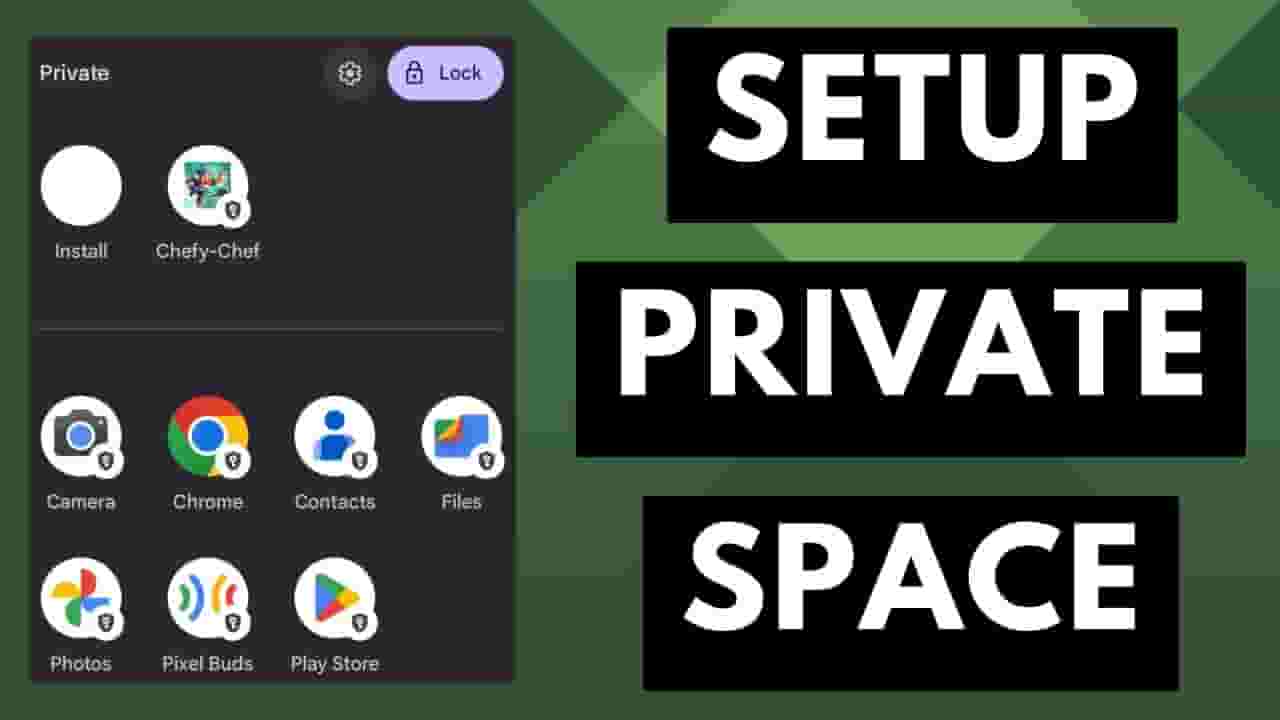
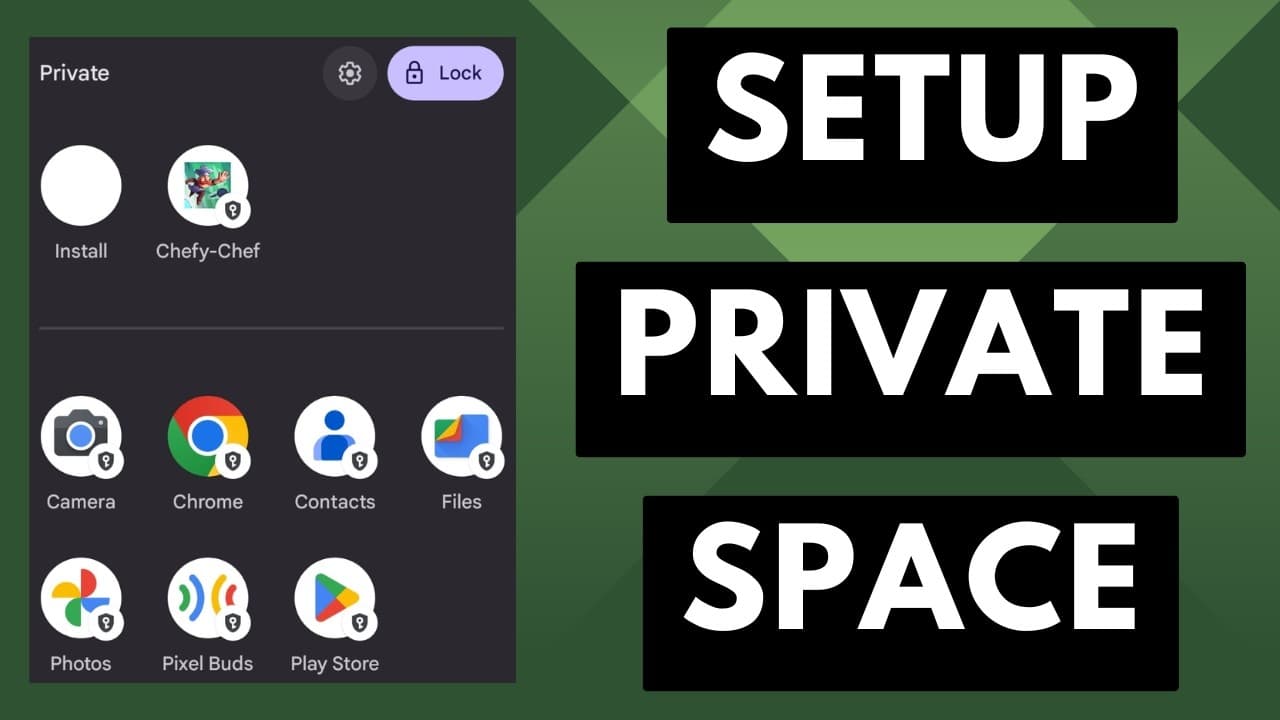
Private Space is new feature that launches with Android 15 and it allows you to lock away access to certain apps. ~~~~~ Hi! Don't forget to like the video, subscribe to the channel, and hit the "Thanks" button on this video, if you can, and join our channel community here - https://www.youtube.com/channel/UCnowc_KHgjVNj3Y-E-oQ8aw/join Video Description ~~~~ With the launch of Android 15, Google has introduced a new feature they are calling Private Space. Applications that are locked within a Private Space have an additional layer of protection as they cannot be accessed until you unlock them. #android15 #googlepixel #pixel9 #pixel7 #pixel8 These apps are accessible via the Application Drawer but only after you have set everything up. So today, I'll show you how to activate the Private Space feature. How to add applications to it. As well as how to unlock and relock access to the Private Space. Setting up Private Space To begin, you first must have a lock screen setup on your device. Whether this is with a PIN, Pattern, or Password. . .this is required before you can setup your Private Space. After that is done, you'll then want to open up the Settings application. Scroll down so that you can tap on the Security & Privacy menu. And then you can scroll down again to reveal the new Private Space option within Android 15. You will then be required to enter your pin/pattern/password to proceed. If this is your first time using the feature, you'll be greeted with this onboarding screen here. We get an animation showing how the feature works Along with some details about what is required, and how these apps work when they are installed to your private space. So let's tap on that Setup button down here. If you really want to keep the contents of these apps private, you have the option to create a seperate Google account. That way you don't see any app install activity listed on your main account. . .and things like photos and videos won't be synced there either. But this is not required and you can simply tap on the Skip button down here if you're just wanting to limit access to certain apps. With that done, you're then given the option to choose a different pin, pattern, or password to gain access to the Private Space You could simply choose to reuse the one you have already setup. . .but again, this is a nice feature to have for those who really want to keep their Private Space secure and separate from their normal setup. With that finished, we have completed the setup process of Private Space on Android 15. how to access private space Now, to access your newly created Private Space, you'll find that within the application drawer. So swipe up from the Home Screen And then scroll all the way down to the bottom. Here, you'll see a new section labeled Private with a little Lock icon to designate the private space is currently locked Tap on that little lock icon, and then you'll be asked to enter the pin, pattern, or password that you setup for your Private Space Once it has been unlocked, you then have access to your locked apps and you'll have the ability to install apps to this private space It's important to note that app data from your device is not carried over when it has been installed to your private space so if you're installing a 3rd-party camera application that you enjoy, those photos and videos will not be moved to your Private Space Everything is kept separate since these are technically installed to a completely different user profile when you're done accessing the apps in your Private Space, simply tap on that padlock button here, to lock everything up Google has made good use of the user profile system that's already built within the Android firmware when launching this Private Space feature. I know some people will not be happy with the big "private" label that's shown at the bottom of the App Drawer But maybe we will see this feature evolve over the years if enough people end up using it. Which we all know is rather important since Google has a history of removing features like this, instead of improving them, if they find that not enough people are using them. Step by Step Tutorial ~~~~~~~~~~~~~~~~~ 1. Intro [00:00] 2. Setting up the Private Space [00:43] 3. How to Access Private Space? [04:49] 4. How to Lock the Private Space? [06:58] 5. Conclusion [07:25] As an Amazon associate, I may earn a commission on sales from the links below. The Gear I Use ~~~~~~~~~~~~~~~~~ 5W "Slow" Charger - https://amzn.to/2OaUMV8 Fast Charger - https://amzn.to/3rtBsC6 MicroUSB Cable - https://amzn.to/38dkpeM USB-C Cable - https://amzn.to/2OqlTvi TPU Cases - https://amzn.to/38g9b9w USB-C to 3.5mm Dongle - https://amzn.to/3rVt7c3 USB-C to 3.5mm DAC - https://amzn.to/3CyksSJ NVIDIA Shield TV - https://bit.ly/3KA17RV Telescopic Controller - https://amzn.to/3uDrvY9
About YouTube Real-Time View Count
With SocialCounts.org’s view counter, track your YouTube video’s live view count and YouTube likes count in real time with fast, reliable updates.
Watch every YouTube video live view count rise with our real-time YouTube views tracker—built for accuracy and minimal delay.
Follow YouTube real time views as they happen, using our dedicated view counter for YouTube videos.
Get up-to-date live view count on YouTube and see real-time growth with SocialCounts.org’s smart tracking tools.
Embed Widget
Parameters:
fullscreen=true- Fullscreen countergraph=true- Live graph chartcounter=0/1/2- Select counter (0=likes, 1=views, 2=comments)
URL
Click to copy the embed URL to your clipboard