

14,041
likes
947
comments
daily view 0
monthly view 0
Live Analytics
Comments 0
How To Adjust Screen Brightness In Windows 10 Analytics Table
Income Estimates for How To Adjust Screen Brightness In Windows 10
Based on this YouTube video's total view count of 3.18M views and industry-standard rates, the estimated total earning is $2.23K - $6.36K through ad revenue. Historical data is not yet available to calculate daily, weekly, or monthly averages.
About How To Adjust Screen Brightness In Windows 10
Explore How To Adjust Screen Brightness In Windows 10 with 3,184,068 views, 14,041 likes, and 947 comments. Experience the impact of this video content that has captured audience attention.
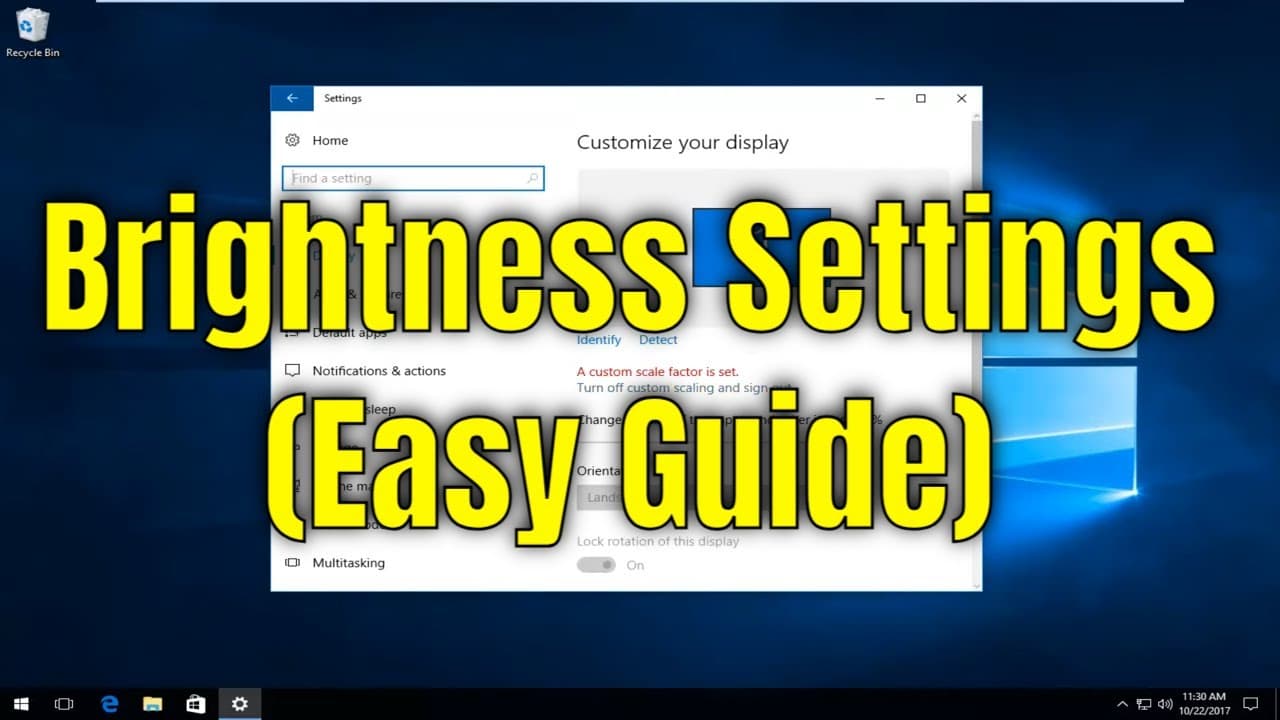
How To Adjust Screen Brightness In Windows 10 Topics covered in this tutorial: adjust screen brightness adjust screen brightness Windows 10 adjust screen brightness Windows 10 desktop adjust screen brightness windows adjust screen brightness desktop PC You probably need to change your screen brightness regularly. When it’s bright outside, you want to turn it up so you can see. When you’re in a dark room, you’ll want it dim so it doesn’t hurt your eyes. Decreasing your screen brightness will also help save you power and increase your laptop’s battery life. Aside from manually changing the screen brightness, you can have Windows change it automatically in a variety of ways. Windows can change it based on whether you’re plugged in, based on how much battery power you have left, or using an ambient light sensor built into many modern devices. How to Adjust Brightness Manually on a Laptop or Tablet On most laptop keyboards, you’ll find shortcut keys that allow you to quickly increase and decrease your brightness. Often, these keys are part of the row of F-keys–that’s F1 through F12–that appear above the number row on your keyboard. To adjust the screen brightness, look for an icon that corresponds to brightness–often a sun logo or something similar–and press the keys. These are often function keys, which means you may have to press and hold the Fn key on your keyboard, often located near the bottom-left corner of your keyboard, while you press them. You can also adjust the display brightness from within Windows as well. This is especially helpful if your keyboard doesn’t have these keys, or if you’re using a tablet and you have to do it within software. On Windows 10, you can click the battery icon in the notification area and click the brightness tile that appears. This adjusts the brightness in increments of 25% each time you tap it. You can also swipe in from the right or open the Action Center from your system tray and use the quick settings tile there. You’ll find this option in the Settings app on Windows 10, too. Open the Settings app from your Start menu or Start screen, select “System,” and select “Display.” Click or tap and drag the “Adjust brightness level” slider to change the brightness level. If you’re using Windows 7 or 8, and don’t have a Settings app, this option available in the Control Panel. Open the Control Panel, select “Hardware and Sound,” and select “Power Options.” You’ll see a “Screen brightness” slider at the bottom of the Power Plans window. You’ll also see this option in the Windows Mobility Center. Launch it by right-clicking the Start button on Windows 10 and 8.1 and selecting “Mobility Center,” or pressing the Windows key + X on Windows 7. Change the “Display brightness” slider in the window that appears. How to Adjust Brightness Manually on an External Display Most of the methods in this tutorial are designed for laptops, tablets, and all-in-one PCs. However, if you’re using a desktop PC with an external display–or even connecting an external display to a laptop or tablet–you’ll need to adjust his setting on the external display itself, and you usually won’t be able to do it automatically. Look for “brightness” buttons on the display and use them to adjust the display brightness. You may instead need to press some sort of “Menu” or “Options” button before you can access an on-screen display that will allow you to increase or decrease the brightness. You’ll often find these buttons near the power button on a computer monitor. With some monitors, you may also be able to adjust your screen’s brightness with an app like ScreenBright or Display Tuner, though they won’t work with all monitors. How to Automatically Adjust Brightness When You’re Plugged In You can set different display brightness levels on your laptop or tablet based on whether or not you’re plugged into an outlet or not. For example, you could have it set to a high brightness level when you’re plugged in, and a lower one when you’re on battery power. Windows would then automatically adjust your brightness. To adjust this, open the Control Panel. Select “Hardware and Sound,” select “Power Options,” and click the “Change plan settings” link next to the power plan you’re using. You’re probably using the Balanced power plan. Configure different screen brightness levels for “On battery” and “Plugged in” under “Adjust plan brightness.” This setting is tied to your power plan. You can configure different screen brightness levels for different power plans and switch between them if you choose. This tutorial will apply for computers, laptops, desktops,and tablets running the Windows 10 operating system (Home, Professional, Enterprise, Education) from all supported hardware manufactures, like Dell, HP, Acer, Asus, Toshiba,Lenovo, and Samsung).
About YouTube Real-Time View Count
With SocialCounts.org’s view counter, track your YouTube video’s live view count and YouTube likes count in real time with fast, reliable updates.
Watch every YouTube video live view count rise with our real-time YouTube views tracker—built for accuracy and minimal delay.
Follow YouTube real time views as they happen, using our dedicated view counter for YouTube videos.
Get up-to-date live view count on YouTube and see real-time growth with SocialCounts.org’s smart tracking tools.
Embed Widget
Parameters:
fullscreen=true- Fullscreen countergraph=true- Live graph chartcounter=0/1/2- Select counter (0=likes, 1=views, 2=comments)
URL
Click to copy the embed URL to your clipboard