


3,961
likes
199
comments
daily view 0
monthly view 0
Live Analytics
Comments 0
How To Download & Install Minecraft Shaders 1.19.4 Analytics Table
Income Estimates for How To Download & Install Minecraft Shaders 1.19.4
Based on this YouTube video's total view count of 302K views and industry-standard rates, the estimated total earning is $212 - $606 through ad revenue. Historical data is not yet available to calculate daily, weekly, or monthly averages.
About How To Download & Install Minecraft Shaders 1.19.4
Explore How To Download & Install Minecraft Shaders 1.19.4 with 302,927 views, 3,961 likes, and 199 comments. Experience the impact of this video content that has captured audience attention.
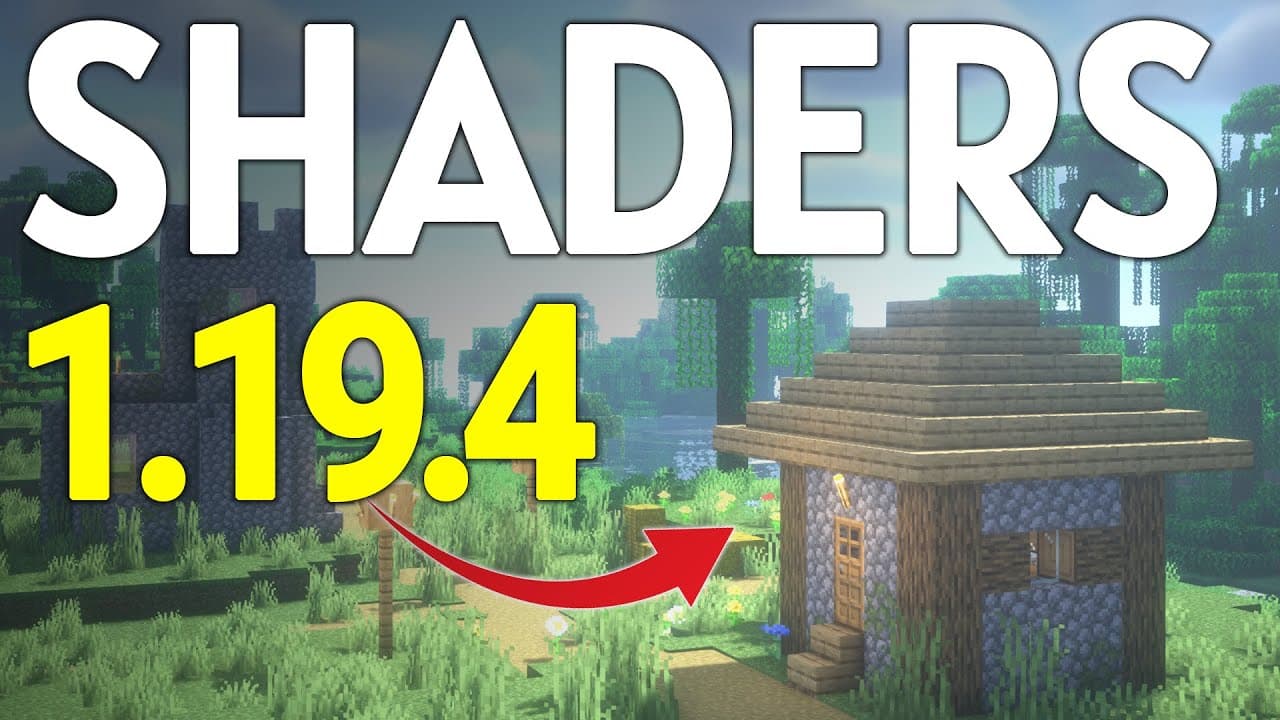
How can you download and install shaders for Minecraft 1.19.4? Well, in this video, we go over every single step of downloading, installing, and using shaders 1.19.4 in Minecraft. With 1.19.4 Minecraft shaders, you can completely change the look of Minecraft making it look more realistic and overall much better. From the lighting to how grass and trees wave in the wind, shaders changes it all in Minecraft 1.19.4! Get an incredible DDOS Protected Minecraft 1.19.4+ server for you and your friends with SimpleGameHosting! https://TheBreakdown.xyz/MCServers Shaders Packs: https://TheBreakdown.xyz/ShadersPacks Download Optifine: https://TheBreakdown.xyz/Optifine Download Java: https://TheBreakdown.xyz/Java Run The Jarfix: https://TheBreakdown.xyz/Jarfix --------------------------------------------- ★ Join The Discord Support Community: https://TheBreakdown.xyz/Discord ► Subscribe!: https://TheBreakdown.xyz/YTSub --------------------------------------------- Make a 1.19.4 Server!: https://youtu.be/LK47h9eNr34 Install 1.19.4 Texture Packs!: https://youtu.be/_aOWQ2-bl-Y --------------------------------------------- **SOCIAL MEDIA** Twitter: https://Twitter.com/TheBreakdownXYZ TikTok: https://www.tiktok.com/@thebreakdownxyz --------------------------------------------- ★ My Gear Get your C920 Webcam: https://TheBreakdown.xyz/c920 Get your Blue Snowball: https://TheBreakdown.xyz/Snowball About this video: Shaders are the best way to take the look of Minecraft 1.19.4 to the next level. They make Minecraft look more realistic, take the lighting to the next level, and even add in things like volumetric clouds and plants that wave in the wind. Truthfully, 1.19.4 Shaders are a great way to completely change the entire look of Minecraft. So how do you install shaders on Minecraft PC 1.19.4? Well, first things first, you need to download and install Optifine. Optifine is the mod that actually allows us to use Shaders in Minecraft 1.19.4. You can find our complete guide on how to get Optifine 1.19.4 in the description above. It goes over absolutely everything you need to know about getting Optifine including how to fix any issues you may have. There is even a quick text guide on installing shaders in our Optifine guide. Once you have Optifine, we can move on to how to download shaders for Minecraft 1.19.4. When we talk about downloading shaders, we are actually talking about getting shader packs for Minecraft PC. Shader packs are similar to texture packs in that shader packs are all unique in their own way. From lighting to shading to how to clouds and plants act in your world, each shader pack has their own style. Even 1.19.4 shader performance changes with each pack. With that being said, we have a list of the best shader packs for Minecraft 1.19.4 in the description above. Literally, every single kind of Minecraft shaders that you may want is there. Feel free to download a few different shaders for Minecraft Java. It’s super easy to change between them. After you have your shaders downloaded, we can move on to how to install shaders on Minecraft PC 1.19.4. First, open up Minecraft with Optifine. Then, once Minecraft is opened, go to Options, Video Settings, Shaders. Then, from there, click on ‘Shaders’. This is where you will be able to manage all of your shader packs. Click the ‘Shader Packs’ button in the bottom right. This will open your shaderpacks folder. Drag-and-drop any shaders that you want to install into this shaderpacks folder. That’s all need to do to install shaders for Minecraft PC. To activate and use shaders in 1.19.4, go back to Minecraft. You will see the shader packs you installed there. Click on the shader to activate it. Then, you are done! You now have shaders in Minecraft. In the shaders menu, you can change your shader options by clicking the button in the bottom right. This is a great way to customize your shaders to be exactly what you are looking for. Some shader packs have more customization options than others. Nevertheless, you now know how to download and install shaders for Minecraft PC 1.19.4. If you have any questions about how to get shaders for Minecraft Java 1.19.4, let us know in the comments. We will try our best to help you out. Otherwise, if we did help you learn how to use shaders in Minecraft 1.19.4, please give this video thumbs up and subscribe to the channel if you haven’t already. It really helps us out, and it means a ton to me. Thank you very, very much in advance! Note: Some of the above links are affiliate links. I may receive a commission at no additional cost to you if you go to these sites and make a purchase.
About YouTube Real-Time View Count
With SocialCounts.org’s view counter, track your YouTube video’s live view count and YouTube likes count in real time with fast, reliable updates.
Watch every YouTube video live view count rise with our real-time YouTube views tracker—built for accuracy and minimal delay.
Follow YouTube real time views as they happen, using our dedicated view counter for YouTube videos.
Get up-to-date live view count on YouTube and see real-time growth with SocialCounts.org’s smart tracking tools.
Embed Widget
Parameters:
fullscreen=true- Fullscreen countergraph=true- Live graph chartcounter=0/1/2- Select counter (0=likes, 1=views, 2=comments)
URL
Click to copy the embed URL to your clipboard