

25,021
likes
2,558
comments
daily view 0
monthly view 0
Live Analytics
Comments 0
How to Fix iPhone Stuck in Zoom Mode/Unlock iPhone in Zoom Mode Analytics Table
Income Estimates for How to Fix iPhone Stuck in Zoom Mode/Unlock iPhone in Zoom Mode
Based on this YouTube video's total view count of 2.36M views and industry-standard rates, the estimated total earning is $1.65K - $4.72K through ad revenue. Historical data is not yet available to calculate daily, weekly, or monthly averages.
About How to Fix iPhone Stuck in Zoom Mode/Unlock iPhone in Zoom Mode
Explore How to Fix iPhone Stuck in Zoom Mode/Unlock iPhone in Zoom Mode with 2,362,654 views, 25,021 likes, and 2,558 comments. Experience the impact of this video content that has captured audience attention.
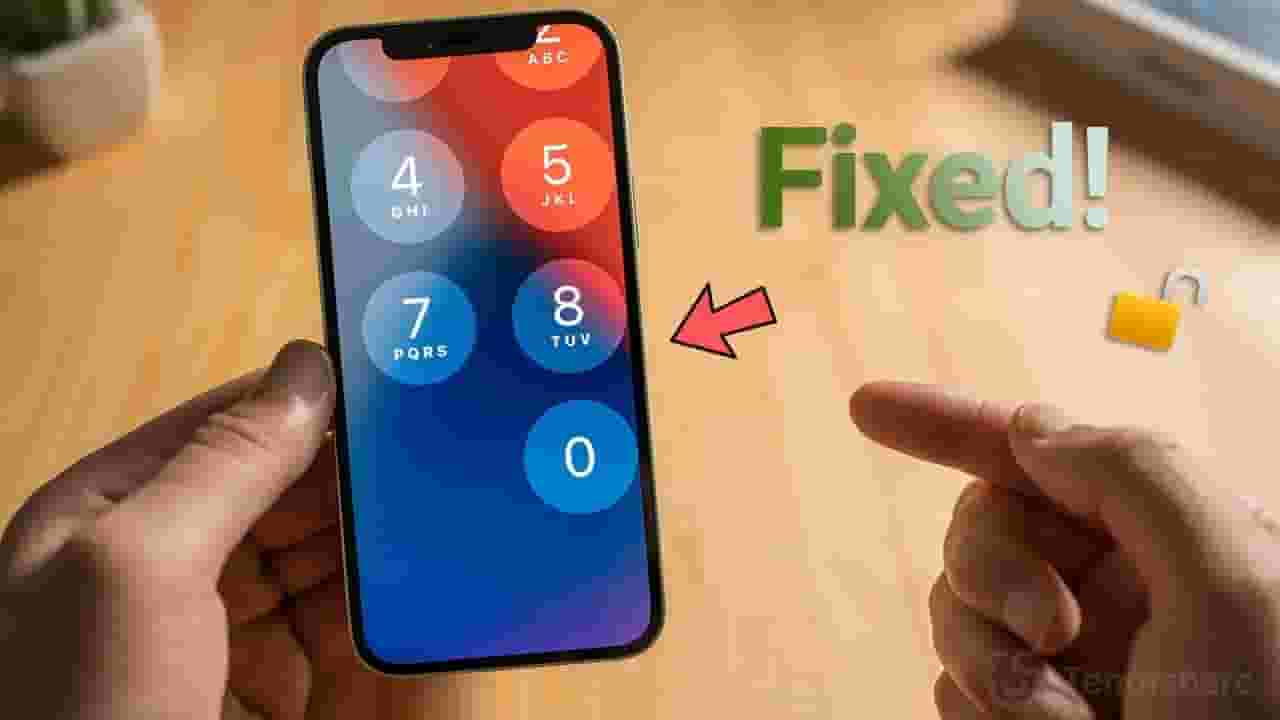
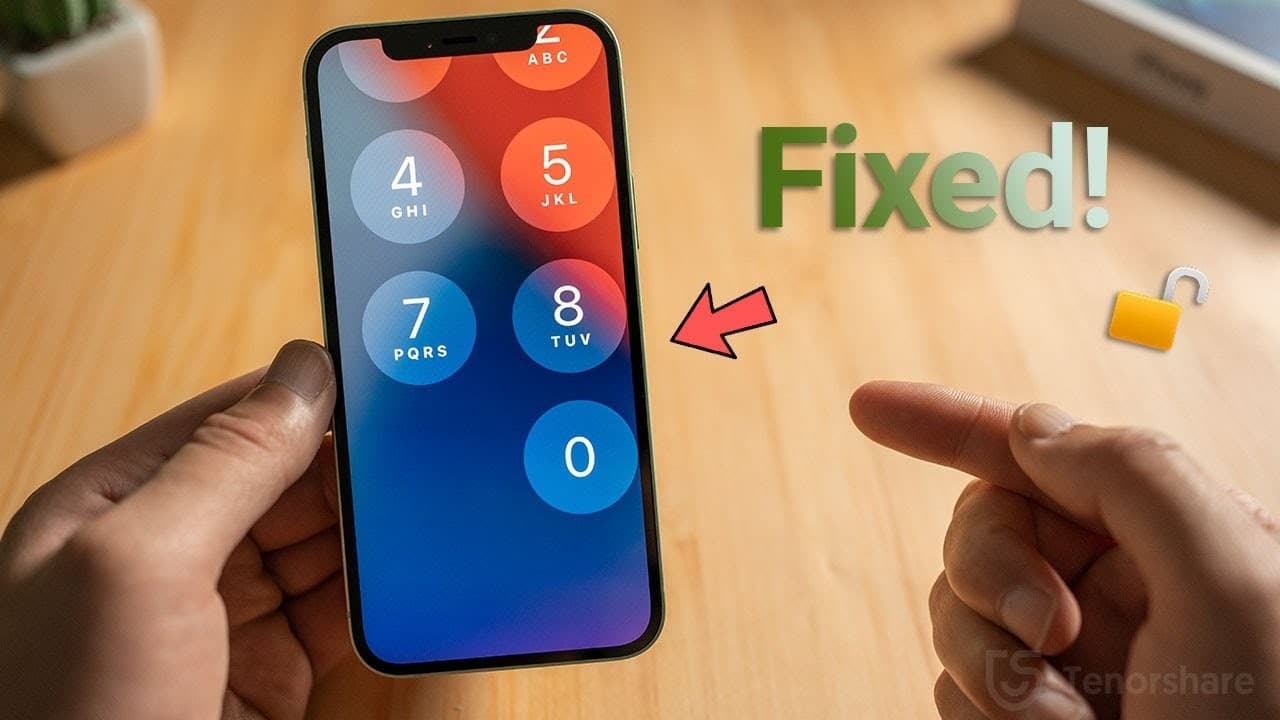
Try to Fix iPhone Zoom Out Stuck Problem with ReiBoot: https://bit.ly/3puPaIb Is your iPhone screen stuck in zoom mode? Don’t worry! This video will show you how to zoom out iPhone screen, turn off zoom on iPhone, and fix the iPhone zoom problem with multiple easy methods. From gesture controls to settings adjustments and iTunes/Finder fixes, we’ve got you covered. * 💡Fix iPhone Stuck in Zoom Mode Problem Text Guide* *Zoom Out iPhone Screen by Double Tapping* 1. Double tap on the screen with three fingers to zoom out. 2. Use this gesture anytime to return the screen to normal. *Disable iPhone Zoom Mode in Settings* 1. Go to Settings, Accessibility, Zoom. 2. Toggle off the Zoom feature to prevent accidental activation. *Force Restart iPhone to Fix Zoom Mode* 1. Press and quickly release the Volume Up button. 2. Press and quickly release the Volume Down button. 3. Press and hold the Side button until the Apple logo appears. *Turn Off iPhone Zoom Mode Using iTunes or Finder* 1. Connect your iPhone to a computer and open iTunes or Finder. 2. Go to your device page and click on Configure Accessibility. 3. Deselect the "Use Zoom" checkbox to disable zoom. *Exit iPhone Zoom Mode with ReiBoot Recovery Mode* 1. Download and open ReiBoot, then connect your iPhone to a computer. 2. Put your iPhone into recovery mode by holding the Side button until the "Connect to Computer" icon appears. 3. Click "Exit Recovery Mode" in ReiBoot to restore normal screen view. *Update or Reinstall iOS to Fix iPhone Zoom Mode* 1. Connect your iPhone to iTunes or ReiBoot in recovery mode. 2. Select "Update" to reinstall iOS without losing data. 3. After the update, the Zoom feature will be turned off automatically. * 📑 Zoom Mode Explained* Zoom is a helpful feature hidden in the accessibility settings on your iPhone, which magnifies the entire screen so you can view everything more clearly when you need to. However, for most of us who rarely use it, it could be triggered accidentally without our knowledge, then we’ll run into situations like this: It went into zoom mode on the lock screen, and you can't invoke the keyboard to enter the passcode. Or you can see the keyboard, but apparently you can’t enter the passcode properly like this. Some users got this when the device is unlocked, but have no idea how to zoom it out. Not to worry, in most cases this is not even an issue, just you are unaware of the way to turn it off. In this video I’ll show you 6 different ways to bring your phone back to normal, additionally, I’ll show you how to disabled this zoom screen feature so it won’t happen again. Timestamps: 0:00 Intro & Preview 0:56 Fix 1 - Double Tap Three Fingers to Exit Zoom Mode 1:24 Fix 2 - How to Disable Zoom Mode on iPhone/iPad 2:08 Fix 3 - Turn off Zoom Mode in Finder or iTunes 2:46 Fix 4 - Exit Zoom Mode using Recovery Mode Feature of ReiBoot 3:28 Fix 5 - Update or Reinstall iOS with iTunes 3:56 Fix 6 - Repair iOS with ReiBoot Pro #unlockiphoneinzoommode #iphonezoom #iphonestuckinzoommode #tenorshare #reiboot ----------Social Media------------- Facebook: https://www.facebook.com/Tenorshare Twitter: https://twitter.com/Tenorshare Google+: https://plus.google.com/+Tenorsharesoftware Tenorshare official website: https://www.tenorshare.com
About YouTube Real-Time View Count
With SocialCounts.org’s view counter, track your YouTube video’s live view count and YouTube likes count in real time with fast, reliable updates.
Watch every YouTube video live view count rise with our real-time YouTube views tracker—built for accuracy and minimal delay.
Follow YouTube real time views as they happen, using our dedicated view counter for YouTube videos.
Get up-to-date live view count on YouTube and see real-time growth with SocialCounts.org’s smart tracking tools.
Embed Widget
Parameters:
fullscreen=true- Fullscreen countergraph=true- Live graph chartcounter=0/1/2- Select counter (0=likes, 1=views, 2=comments)
URL
Click to copy the embed URL to your clipboard