


29
likes
2
comments
daily view 0
monthly view 0
Live Analytics
Comments 0
How to Clear Cache in Firefox | Delete Browser Cache Analytics Table
Income Estimates for How to Clear Cache in Firefox | Delete Browser Cache
Based on this YouTube video's total view count of 5.02K views and industry-standard rates, the estimated total earning is $4 - $10 through ad revenue. Historical data is not yet available to calculate daily, weekly, or monthly averages.
About How to Clear Cache in Firefox | Delete Browser Cache
Explore How to Clear Cache in Firefox | Delete Browser Cache with 5,027 views, 29 likes, and 2 comments. Experience the impact of this video content that has captured audience attention.
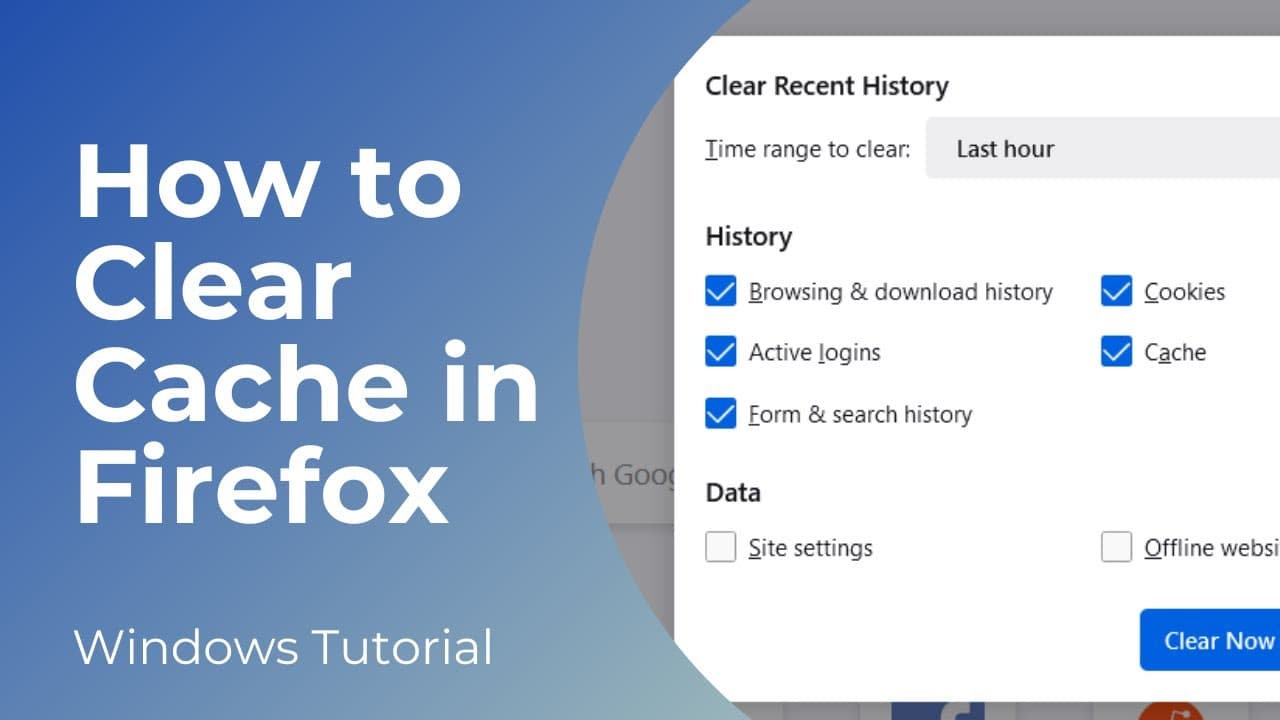
In today’s tutorial, I’m going to show you how to clear your cache in the Firefox browser. By clearing your cache, websites are able to load faster and run smoother, which allows you to browse websites without any performance delays. Also if you’re facing issues with a web page, clearing the cache will either fix the issue, or at the very least, it will help you rule out any issues from your end. *To get started:* 1. Go into the Windows start bar, and type in “Firefox”, click on the Firefox result to open up the browser. 2. In the upper right of the Firefox browser, click on the hamburger icon, a menu will now open. 3. Click on the “History” menu item, and then the “Clear recent history…” menu item. 4. A clear recent history modal will now open up. From here, you can select what browser data you’d like to delete. As you can see, you can delete items such as; browser and download history, cookies, active logins, cache, and form and search history. By clicking on each of these items, you’re able to easily deselect and select them. 5. For demo purposes, I’m going to keep all items selected. 6. At the top of the modal, you’ll see a time range drop down field, from here you can select either the: last hour, last two hours, last four hours, today, or everything. I’m going to select everything. 7. Now click on the “Clear now” button. 8. Your cache and other browser data will now be deleted. And it’s as simple as that, clearing your browser's cache in Firefox is a simple task to perform. *What is cache?* What is browser cache? Browser cache refers to the temporary storage of web page resources (such as images, stylesheets, scripts, and other elements) on a user's device by their web browser. The primary purpose of browser caching is to improve the loading speed and performance of websites. When you visit a website, your browser downloads various files needed to display the page correctly. Instead of fetching these files from the web server every time you revisit the same page or navigate to other pages within the same site, the browser stores a copy of these files in its cache. The next time you visit the same page, the browser can retrieve the files from the cache rather than downloading them again from the server. This process helps to reduce page loading times and decrease the amount of data transferred over the internet. While browser caching offers significant performance benefits, it can sometimes lead to issues. For example, if a website updates its resources (such as images, stylesheets, or scripts), and your browser is still using the cached versions, you may not see the latest changes. To address this, web developers often use techniques like cache control headers to specify how long browsers should cache certain resources and provide mechanisms to force a cache refresh when necessary. Users can also manually clear their browser cache if they want to ensure that they are viewing the most up-to-date version of a website or if they are experiencing issues with cached data. The process of clearing the cache varies depending on the browser used. #cache #firefox #mozillafirefox #windows10 #windows11 #cookies #history
About YouTube Real-Time View Count
With SocialCounts.org’s view counter, track your YouTube video’s live view count and YouTube likes count in real time with fast, reliable updates.
Watch every YouTube video live view count rise with our real-time YouTube views tracker—built for accuracy and minimal delay.
Follow YouTube real time views as they happen, using our dedicated view counter for YouTube videos.
Get up-to-date live view count on YouTube and see real-time growth with SocialCounts.org’s smart tracking tools.
Embed Widget
Parameters:
fullscreen=true- Fullscreen countergraph=true- Live graph chartcounter=0/1/2- Select counter (0=likes, 1=views, 2=comments)
URL
Click to copy the embed URL to your clipboard