


156
likes
31
comments
daily view 0
monthly view 0
Live Analytics
Comments 0
How to PAIR Connect TP-Link AV1000 to Internet Router (Fix Not Connecting TL-PA7017 Av500 Nano Kit) Analytics Table
Income Estimates for How to PAIR Connect TP-Link AV1000 to Internet Router (Fix Not Connecting TL-PA7017 Av500 Nano Kit)
Based on this YouTube video's total view count of 44.0K views and industry-standard rates, the estimated total earning is $31 - $88 through ad revenue. Historical data is not yet available to calculate daily, weekly, or monthly averages.
About How to PAIR Connect TP-Link AV1000 to Internet Router (Fix Not Connecting TL-PA7017 Av500 Nano Kit)
Explore How to PAIR Connect TP-Link AV1000 to Internet Router (Fix Not Connecting TL-PA7017 Av500 Nano Kit) with 44,082 views, 156 likes, and 31 comments. Experience the impact of this video content that has captured audience attention.
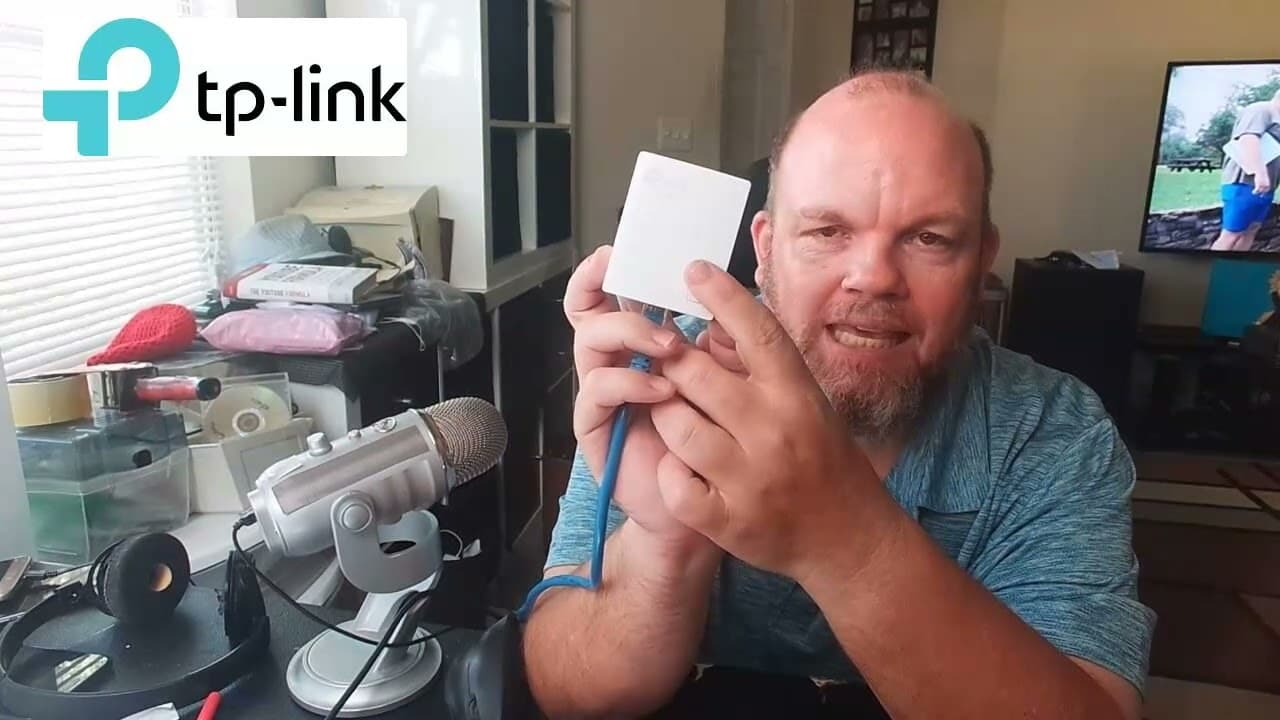
If your TP-Link AV1000 powerline adapter is not pairing with the router, follow these steps to troubleshoot the issue: Check Hardware Connections: Ensure that both powerline adapters are plugged directly into the wall outlets (not power strips or surge protectors) to establish a more reliable connection. Verify that the Ethernet cable is securely connected between the powerline adapter and the router. Verify LED Indicators: The powerline adapters should have LED indicators that show their status. Check the user manual to interpret the LED colors or blinking patterns. Usually, a steady LED indicates a successful connection, while a blinking LED might indicate a pairing or connection issue. Reset the Powerline Adapters: To reset the powerline adapters, press and hold the reset button on each adapter for about 10 seconds until the LEDs start flashing. This should reset them to their default settings. Pair the Powerline Adapters Again: Powerline adapters typically come pre-paired, but sometimes they can lose their connection. To pair them again, follow these steps: Plug both powerline adapters into nearby electrical outlets and make sure they are on the same electrical circuit. Press the pair button on one of the adapters for about 2 seconds, and then do the same on the other adapter within 2 minutes. The LEDs should stop blinking and become steady, indicating a successful pairing. Avoid Electrical Interference: Powerline adapters' performance can be affected by electrical noise or interference from other devices. Try to avoid using powerline adapters on circuits with heavy electronic equipment. Ensure that both powerline adapters are not connected to power strips or extension cords, as these can also introduce interference. Check Router Settings: Log in to your router's admin interface and verify that the Ethernet ports are enabled and functioning correctly. Ensure that the DHCP server is enabled and providing IP addresses to connected devices. Update Firmware: Check the TP-Link website for firmware updates for your AV1000 powerline adapters. If updates are available, follow the instructions provided to upgrade the firmware. Updated firmware can often resolve compatibility issues and improve performance. Factory Reset: If none of the above steps work, try a factory reset on both powerline adapters. Refer to the user manual for the specific procedure, as it may vary depending on the model. If the issue persists even after trying the above steps, there might be a hardware defect with one of the powerline adapters. In that case, you should contact TP-Link support or consider replacing the faulty adapter.
About YouTube Real-Time View Count
With SocialCounts.org’s view counter, track your YouTube video’s live view count and YouTube likes count in real time with fast, reliable updates.
Watch every YouTube video live view count rise with our real-time YouTube views tracker—built for accuracy and minimal delay.
Follow YouTube real time views as they happen, using our dedicated view counter for YouTube videos.
Get up-to-date live view count on YouTube and see real-time growth with SocialCounts.org’s smart tracking tools.
Embed Widget
Parameters:
fullscreen=true- Fullscreen countergraph=true- Live graph chartcounter=0/1/2- Select counter (0=likes, 1=views, 2=comments)
URL
Click to copy the embed URL to your clipboard