

331
likes
38
comments
daily view 0
monthly view 0
Live Analytics
Comments 0
Accessing Your Smartphone from Windows Using Phone Link Analytics Table
Income Estimates for Accessing Your Smartphone from Windows Using Phone Link
Based on this YouTube video's total view count of 79.7K views and industry-standard rates, the estimated total earning is $56 - $160 through ad revenue. Historical data is not yet available to calculate daily, weekly, or monthly averages.
About Accessing Your Smartphone from Windows Using Phone Link
Explore Accessing Your Smartphone from Windows Using Phone Link with 79,785 views, 331 likes, and 38 comments. Experience the impact of this video content that has captured audience attention.
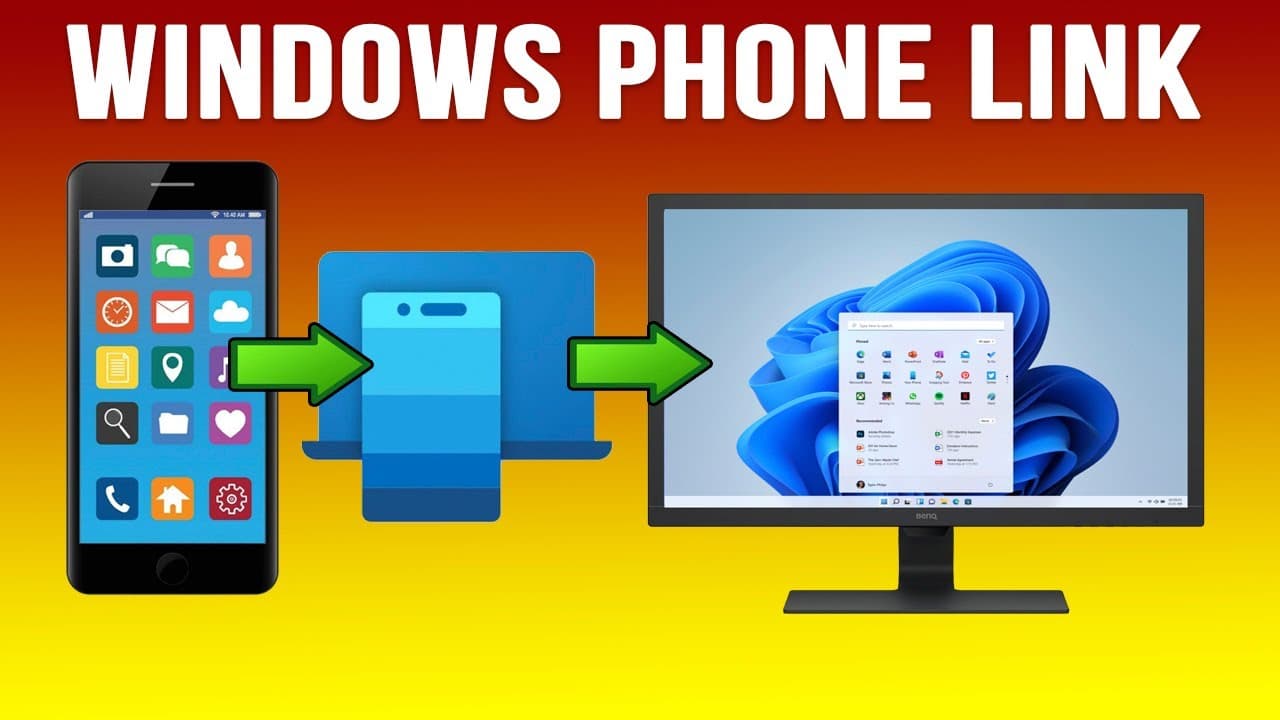
Connecting your smartphone to your PC with Windows Phone Link is a great way to stay productive by managing your texts, calls, and photos without ever having to pick up your device. Setting up PhoneLink is not too difficult of a process and can be completed in just a few minutes. Then you will be able to access your Android or iPhone smartphone from your Windows computer without having to pick up the phone itself which can save you valuable time. Here is a writeup of the Microsoft Phone Link setup process on our website. https://onlinecomputertips.com/support-categories/windows/access-smartphone-using-windows-phone-link/ Learn how to use the Phone Link feature in Windows to seamlessly connect your Android or iPhone to your computer. Once linked, you can send and receive text messages, make and answer phone calls, and view your phone's photo gallery directly from your desktop. 0:00 - Introduction: Features of Windows Phone Link 0:27 - Enabling Phone Link in Windows Settings 0:45 - Linking Your Android or iPhone 2:36 - Navigating Messages, Calls, and Photos 4:30 - How to Disconnect Your Device If you have an Android or iPhone smartphone and want to connect it to your Windows computer to access text messages, photos and make phone calls, you can easily do so using the Windows Phone Link feature. Once you configure your phone and Windows, you will then be able to do things such as view and send text messages from your phone as well as view and download pictures from your phone. There is even an option to use your computer to make phone calls when your phone is connected. There are a few steps that need to be completed on both your smartphone and computer to make this work. Step-by-Step Instructions: The Setup: On your PC, go to Settings - Bluetooth & devices - Mobile devices. Ensure the Phone link toggle is turned On, then click Open Phone Link. Requirements: Android: Requires Android 8.0 or later. iPhone: Requires iOS 15.0 or later. Pairing Your Device: Select your phone type (Android or iPhone) on the PC screen. A QR code will appear. Use your smartphone's camera or the "Link to Windows" app to scan it. Enter the security code shown on your PC onto your phone. Permissions: Follow the prompts on your phone to allow Windows to access your contacts, messages, and photos. You will need to sign in with the same Microsoft account used on your PC. Feature Overview: Messages: View and reply to SMS/MMS directly. Photos: Browse your mobile gallery and save images to your PC. Calls: If your PC has Bluetooth, you can dial and answer calls through your computer's speakers and microphone. Manage Connection: If you want to stop the link, you can simply toggle the "Phone link" switch to Off in Windows settings or remove the device under the "My Devices" section. 🎓 Step up your skills with our online training courses: http://madeeasytraining.com 📘 Get our book "Windows 11 Made Easy" on Amazon: https://www.amazon.com/dp/B09HFXWXRY 📚 Explore our full library of tech and computer books: https://www.madeeasybookseries.com/home 🚀 Master your software and hardware with our latest tech tips: https://onlinecomputertips.com #PhoneLink #Windows11 #Android #iPhone #Productivity #OnlineComputerTips
About YouTube Real-Time View Count
With SocialCounts.org’s view counter, track your YouTube video’s live view count and YouTube likes count in real time with fast, reliable updates.
Watch every YouTube video live view count rise with our real-time YouTube views tracker—built for accuracy and minimal delay.
Follow YouTube real time views as they happen, using our dedicated view counter for YouTube videos.
Get up-to-date live view count on YouTube and see real-time growth with SocialCounts.org’s smart tracking tools.
Embed Widget
Parameters:
fullscreen=true- Fullscreen countergraph=true- Live graph chartcounter=0/1/2- Select counter (0=likes, 1=views, 2=comments)
URL
Click to copy the embed URL to your clipboard