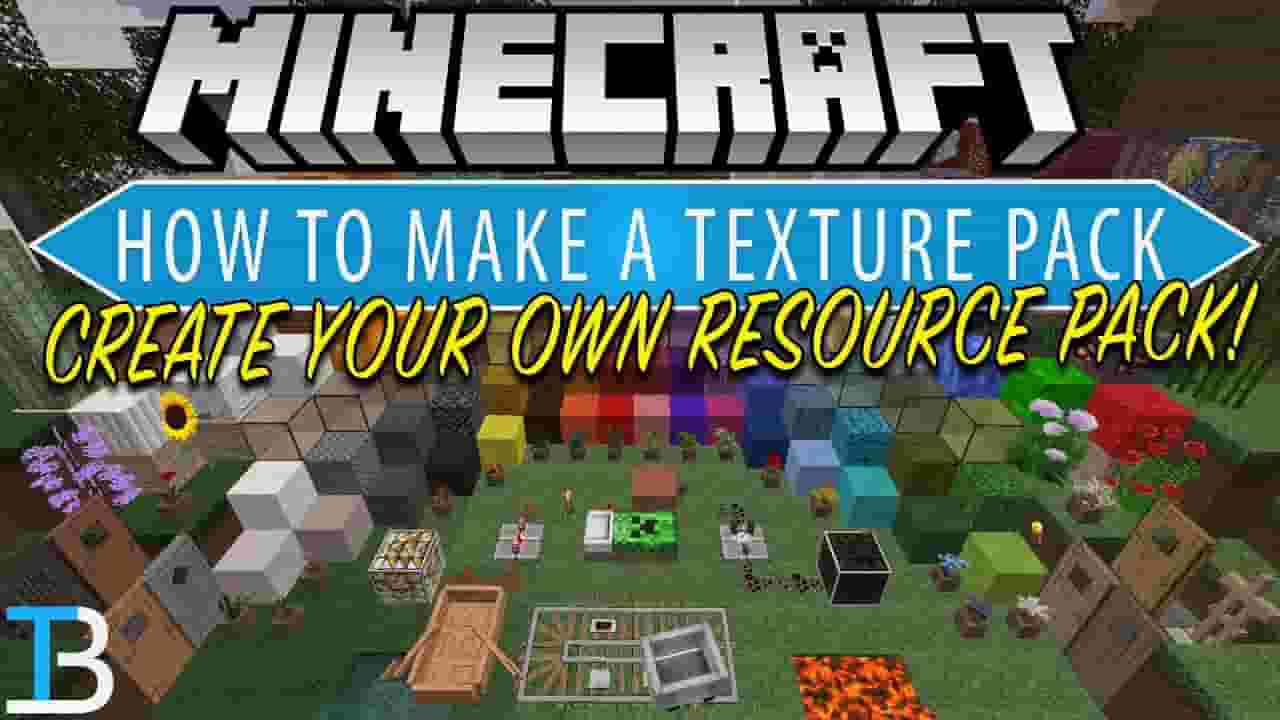
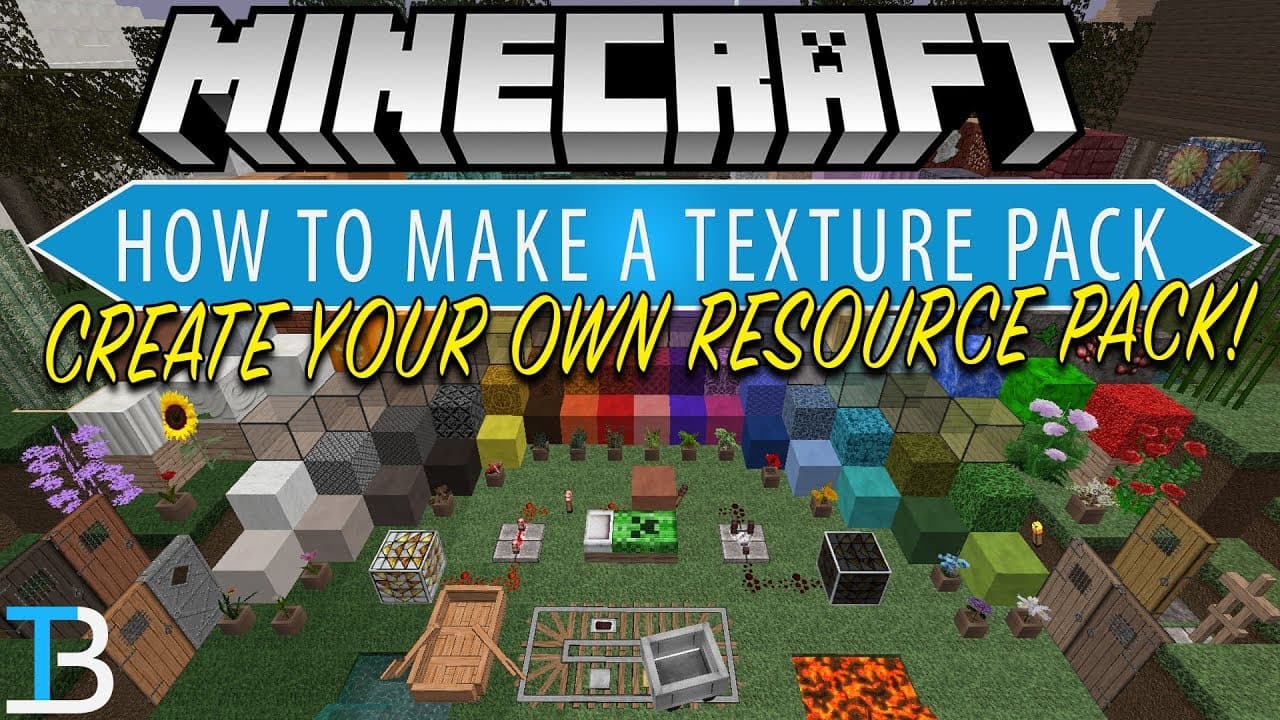


How To Make A Resource Pack in Minecraft (Complete Guide to Making a Minecraft Texture Pack!)
1,708,162
Socialcounts.Org
38,132
likes
4,752
comments
daily view 0
monthly view 0
Live Analytics
Comments 0
How To Make A Resource Pack in Minecraft (Complete Guide to Making a Minecraft Texture Pack!) Analytics Table
Income Estimates for How To Make A Resource Pack in Minecraft (Complete Guide to Making a Minecraft Texture Pack!)
Based on this YouTube video's total view count of 1.70M views and industry-standard rates, the estimated total earning is $1.19K - $3.41K through ad revenue. Historical data is not yet available to calculate daily, weekly, or monthly averages.
About How To Make A Resource Pack in Minecraft (Complete Guide to Making a Minecraft Texture Pack!)
Explore How To Make A Resource Pack in Minecraft (Complete Guide to Making a Minecraft Texture Pack!) with 1,708,162 views, 38,132 likes, and 4,752 comments. Experience the impact of this video content that has captured audience attention.
If you want to make your own resource pack in Minecraft, this is the video for you! I also show you how to make a texture pack in Minecraft in this video as texture packs and resource packs are the exact something! From how to get the Minecraft assets for a texture pack to changing Minecraft textures to adding your resource pack to Minecraft, it is all covered in this video. Start An Incredible DDOS Protected Minecraft Server with SimpleGameHosting! https://TheBreakdown.xyz/MCServers Download Atom: https://TheBreakdown.xyz/Atom Edit Images with GIMP: https://TheBreakdown.xyz/GIMP -------------------------------------------------------- Code for pack.mcmeta { "pack": { "pack_format": 4, "description": "Grayscale Pack" } } -------------------------------------------------------- ★ Minecraft Server IP: Play.BreakdownCraft.com ► Store: http://Store.BreakdownCraft.com/ ★ Join BreakdownCraft on Discord!: https://BreakdownCraft.com/Discord -------------------------------------------------------- ► Subscribe!: https://TheBreakdown.xyz/YTSub -------------------------------------------------------- Get Mods in #Minecraft 1.13.2!: https://youtu.be/tm6E2WJct64 How To Buy An Apex Server!: https://youtu.be/CfFzkvCpebg -------------------------------------------------------- **FOLLOW US ON SOCIAL MEDIA** Our Website: https://TheBreakdown.xyz Facebook: https://Facebook.com/BreakdownHowTo Twitter: https://Twitter.com/BreakdownHowTo Email: [email protected] -------------------------------------------------------- ★ Recommended Gear Get your C920 Webcam: https://TheBreakdown.xyz/c920 Get your Minecraft Server: https://TheBreakdown.xyz/MCServer Get your Blue Snowball: https://TheBreakdown.xyz/Snowball -------------------------------------------------------- Music From EpidemicSound: http://TheBreakdown.xyz/EpidemicSound About this video: In this video, I show you exactly how to make a Minecraft resource pack. I also show you how to create a Minecraft texture pack and texture packs and resource packs are the same thing in Minecraft. This is a complete guide to making a Minecraft texture pack. I show you every step from getting the right files to changing them in Photoshop to even adding the #ResourcePack in game. It really is all covered, so let's jump on into it. First and foremost when creating a Minecraft #TexturePack, you need to go to the '.minecraft' folder using the 'Run' application. Then, you need to go to the 'versions' folder and select the version of Minecraft you want to make your resource pack for. After that, you need to rename the .jar file to a .zip file. This is very easy too if you have file extensions on which you can enable in the view tab of Windows Explorer. After you have turned the .jar file into a .zip file, extract that zip file. Then, delete everything in it but the 'assets' folder. Go ahead and open up the 'assets' folder. Here you will find all of the things you can change with your texture pack. There is a ton of stuff here, but most of the time, you want to change the images in the 'blocks' folder. You can open these and edit them in Photoshop, GIMP, or even paint. Whatever image edit you prefer. Once you have changed all of the textures and created your resource pack, you will need to create a mcpack.meta file. Do this by creating a new text document and then saving that new text document as all files with the name 'mcpack.meta'. I would recommend editing this new file with a text editor and pasting the code in the description above into it. Be sure to change the 'description' if you want your pack to have a custom name. Now, all you need to do is select the assets folder and the 'mcpack.meta' file and zip them. You can name this zipped folder whatever you want. Then, drag and drop this into your Minecraft resource packs folder. You will then see your own Minecraft texture pack appear in game. Select it, and you will be playing with a Minecraft resource pack you created! Nevertheless, if you have any questions about creating a Minecraft resource pack, let me know in the comment section down below, and be sure to give this video a thumbs up and subscribet to the channel if you haven't already. It really helps me out, and it means a ton to us. Thank you very, very much in advance! Note: Some of the above links are affiliate links. I may receive a commission at no additional cost to you if you go to these sites and make a purchase.
About YouTube Real-Time View Count
With SocialCounts.org’s view counter, track your YouTube video’s live view count and YouTube likes count in real time with fast, reliable updates.
Watch every YouTube video live view count rise with our real-time YouTube views tracker—built for accuracy and minimal delay.
Follow YouTube real time views as they happen, using our dedicated view counter for YouTube videos.
Get up-to-date live view count on YouTube and see real-time growth with SocialCounts.org’s smart tracking tools.
Embed Widget
Parameters:
fullscreen=true- Fullscreen countergraph=true- Live graph chartcounter=0/1/2- Select counter (0=likes, 1=views, 2=comments)
URL
Click to copy the embed URL to your clipboard