


1,898
likes
85
comments
daily view 0
monthly view 0
Live Analytics
Comments 0
How to Add Captions to YouTube Shorts | Automatic Subtitle Generator Analytics Table
Income Estimates for How to Add Captions to YouTube Shorts | Automatic Subtitle Generator
Based on this YouTube video's total view count of 124K views and industry-standard rates, the estimated total earning is $87 - $248 through ad revenue. Historical data is not yet available to calculate daily, weekly, or monthly averages.
About How to Add Captions to YouTube Shorts | Automatic Subtitle Generator
Explore How to Add Captions to YouTube Shorts | Automatic Subtitle Generator with 124,176 views, 1,898 likes, and 85 comments. Experience the impact of this video content that has captured audience attention.
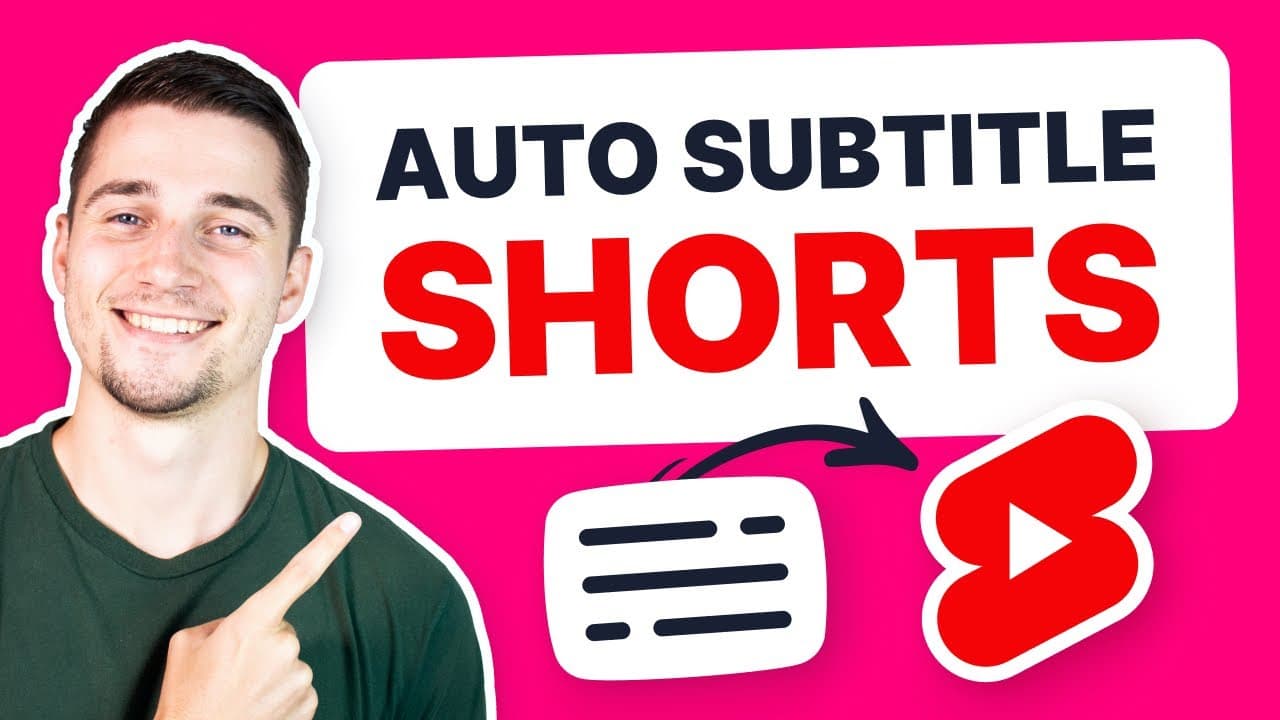
In this video, we show you how to add subtitles to YouTube Shorts automatically. 👉 Auto subtitle Shorts here - https://veed.video/411eqUB In this tutorial, you'll learn how to easily add captions to YouTube Shorts within minutes! VEED's simple online video editor allows users to easily auto subtitle any of their videos. You're able to separately download your transcriptions/subtitles as TXT, SRT, or VTT format files (so you can upload the captions to your videos separately), or burn them into the YouTube Short to export and upload it to your YouTube channel (or TikTok, Instagram (Reels, Story), Facebook or other platforms). 🍀 ------------------------------------------------------------------------------- Additional video resources: How to Add Text to Video Online - https://youtu.be/7P5uM26Ggnk Add Audio Visualizer to Video - https://youtu.be/b0gCcLf-Uw0 How to Remove Audio from Video - https://youtu.be/jGEMzLGe-A8 ------------------------------------------------------------------------------- Add Captions to Shorts | Tutorial First, head over to the website VEED.IO. You can create an account for free.* Next, click on Upload your Video. Then, click on Upload a File. Select the video you’d like to add subtitles or captions to. And then, click on Open. Now, your video will be imported and uploaded into Veed’s online video editor. To automatically add subtitles or captions to your YouTube Shorts, head over to Subtitles in the left menu. Then, click on Auto Subtitle. Find and select the language you speak in your video, and click on Open. Now, the audio in your video will be automatically transcribed to text, which will turn into subtitles. Once it’s finished transcribing, feel free to edit your text in the text boxes on the left. Or, extend, shorten, split or add subtitles in the bottom timeline menu. To customize the styling of your subtitles, head over to Styles in the Subtitle menu, and easily change the font style, size, color, background color, and more. You can also reposition and rotate the subtitles, by clicking and dragging the side and corner options of the subtitles in the video frame. Now, before we burn the subtitles into the video, I’ll show you how to download your subtitles separately first. Simply head over to Options in the Subtitles menu. Then, under Download Subtitles, choose between SRT, TXT, or VTT format. I’ll choose SRT for now. Then, click on the download button, so you can upload these subtitles to your YouTube Shorts separately on YouTube. But, to export the Shorts with the subtitles burned into the video, head over to the export button in the right top corner. Then, choose your preferred render settings. And click on Export Video. After your video is rendered, simply click on the download button to export your YouTube Shorts with captions straight to your device. ------------------------------------------------------------------------------- Add Subtitles to YouTube Shorts - Step by Step: 00:00 Intro 00:02 How to import your video to VEED 00:25 How to add captions to YouTube Shorts 00:43 How to edit the subtitles 01:10 How to download your subtitles (TXT, VTT, SRT) 01:29 How to export your YouTube Short with burned subtitles 01:48 Outro Any questions? Ask away in the comments! Good luck! ------------------------------------------------------------------------------- ⭐ *Get access to more features with VEED’s Pro plan: 4k video quality Longer videos Custom fonts Access to all premium features ------------------------------------------------------------------------------- STAY IN THE LOOP: Subscribe to our YouTube - https://www.youtube.com/veedstudio Follow us on Instagram - https://www.instagram.com/veedstudio Read about Veed's journey - https://www.veed.io/blog/ ------------------------------------------------------------------------------- 👉 TRY VEED - https://veed.video/411eqUB Veed is a simple online video editing platform, perfect for creating social media video content. You can use Veed to crop, trim, filter, add music to videos, automatically generate subtitles, turn podcasts into videos, and much more. Thanks for watching Tim & VEED.IO #veed #subtitles #captions
About YouTube Real-Time View Count
With SocialCounts.org’s view counter, track your YouTube video’s live view count and YouTube likes count in real time with fast, reliable updates.
Watch every YouTube video live view count rise with our real-time YouTube views tracker—built for accuracy and minimal delay.
Follow YouTube real time views as they happen, using our dedicated view counter for YouTube videos.
Get up-to-date live view count on YouTube and see real-time growth with SocialCounts.org’s smart tracking tools.
Embed Widget
Parameters:
fullscreen=true- Fullscreen countergraph=true- Live graph chartcounter=0/1/2- Select counter (0=likes, 1=views, 2=comments)
URL
Click to copy the embed URL to your clipboard