

53
likes
1
comments
daily view 0
monthly view 0
Live Analytics
Comments 0
How to Make a Social Media Countdown Using Photoshop Analytics Table
Income Estimates for How to Make a Social Media Countdown Using Photoshop
Based on this YouTube video's total view count of 7.29K views and industry-standard rates, the estimated total earning is $5 - $15 through ad revenue. Historical data is not yet available to calculate daily, weekly, or monthly averages.
About How to Make a Social Media Countdown Using Photoshop
Explore How to Make a Social Media Countdown Using Photoshop with 7,298 views, 53 likes, and 1 comments. Experience the impact of this video content that has captured audience attention.
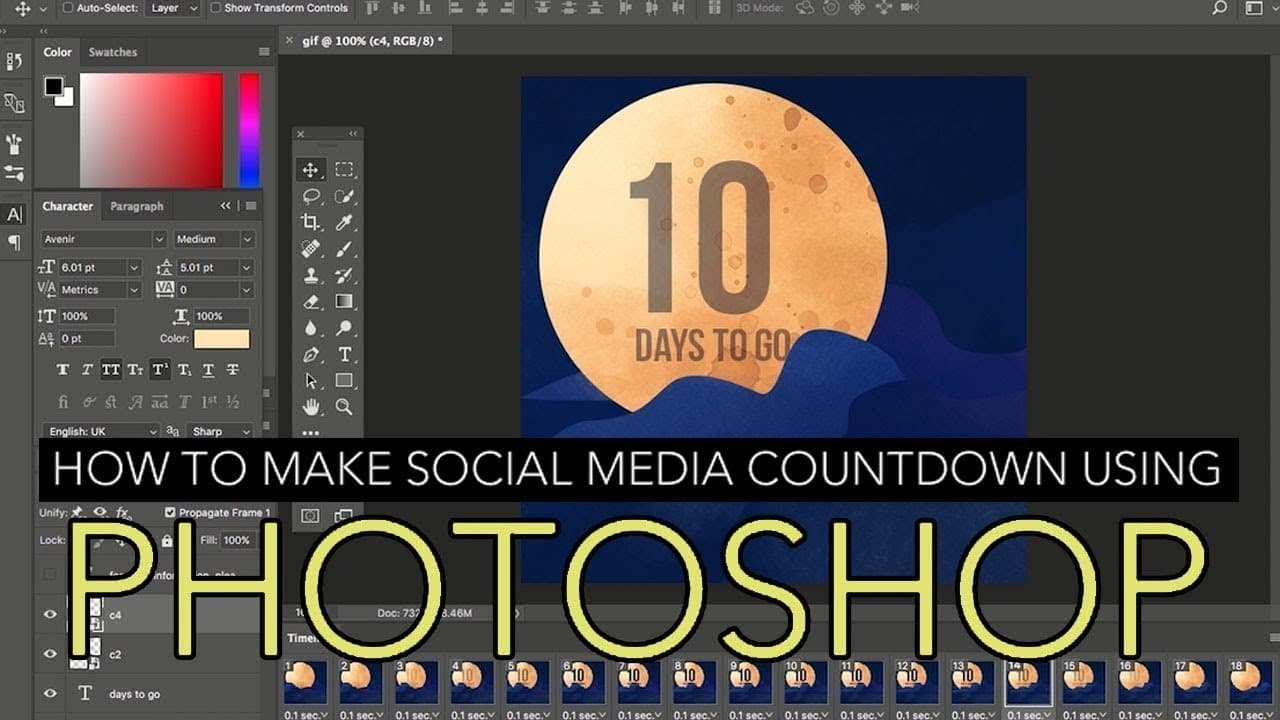
To make a countdown in social media Open the Adobe Photoshop and click Start New A new Document will pop out then name your PSD file Remain the size and resolution of the document then click CREATE Open your ASSETS FOLDER and drag the BACKGROUND to the file Resize the background and make it sure to fully cover the white background Open your ASSETS folder and drag all the remaining assets on the file Resize and arrange the assets according to your likeness Click the TYPE tool and type the countdown days Make sure that the information is visible and eye-catching Click the TIMELINE button at the bottom part and CREATE VIDEO TIMELINE Click the three small rectangles at the bottom Hide your TEXT ASSETS and change the ONCE button to FOREVER Right Click the 5sec mark under the assets file and change it to 0.1 SECONDS Click the Paper Icon at the bottom for new layer Make the TEXT ASSETS visible and change the opacity to 20 percent Click NEW LAYER and move the opacity to 40 percent Keep on adding layers and making the opacity clearer, until it will reach a 100 percent Add more NEW LAYERS and change frame 12's opacity to 60 percent Make frame 13's opacity to 40 percent and 15's frame opacity to 20 percent Change frame 16's opacity to 0 percent Go to the first frame and click the play button to test Click the c4 filename, make sure that you've selected the 1st frame and ADD a new frame In FRAME 2, move the cloud to the right using the right arrow keys Click the c2 filename, and move the clouds to the right CLICK THE ARROW KEYS 5TIMES FOR EACH FRAME TO MAKE THE CLOUDS MOVE TO THE OTHER SIDE IN FRAME 20, CLICK THE TYPE TOOL AND PUT THE DETAILS OF THE SHOW THE NAME OF THE SHOW, DATE, TIME AND VENUE same as the steps we did in the clouds, every frame we’re gonna move the assets by clicking the arrow keys remove the text that will pop out on the bottom part of the frame in frames 18 and 19 In frame 20, make the opacity of the text to 30% and to each following frame add the opacity by tens, by 20’s or by 30’s In frame 21-24 make the text opacity to 100% In frame 25, make the text opacity to 40% Don’t forget to move the clouds to the right in each frame Click the play button to play the GIF To export the file Click File then Export and Save for Web In Preset, change the GIF restrictive to GIF 128 NO DITHER To check it again, click the play button and Click Save Set your filename and save your file Open your exported file and It’s done!
About YouTube Real-Time View Count
With SocialCounts.org’s view counter, track your YouTube video’s live view count and YouTube likes count in real time with fast, reliable updates.
Watch every YouTube video live view count rise with our real-time YouTube views tracker—built for accuracy and minimal delay.
Follow YouTube real time views as they happen, using our dedicated view counter for YouTube videos.
Get up-to-date live view count on YouTube and see real-time growth with SocialCounts.org’s smart tracking tools.
Embed Widget
Parameters:
fullscreen=true- Fullscreen countergraph=true- Live graph chartcounter=0/1/2- Select counter (0=likes, 1=views, 2=comments)
URL
Click to copy the embed URL to your clipboard