

463
likes
89
comments
daily view 0
monthly view 0
Live Analytics
Comments 0
CapCut Seedance 2.5 Tutorial: How to Create AI Text to Video | Full Workflow Analytics Table
Income Estimates for CapCut Seedance 2.5 Tutorial: How to Create AI Text to Video | Full Workflow
Based on this YouTube video's total view count of 4.19K views and industry-standard rates, the estimated total earning is $3 - $8 through ad revenue. Historical data is not yet available to calculate daily, weekly, or monthly averages.
About CapCut Seedance 2.5 Tutorial: How to Create AI Text to Video | Full Workflow
Explore CapCut Seedance 2.5 Tutorial: How to Create AI Text to Video | Full Workflow with 4,191 views, 463 likes, and 89 comments. Experience the impact of this video content that has captured audience attention.
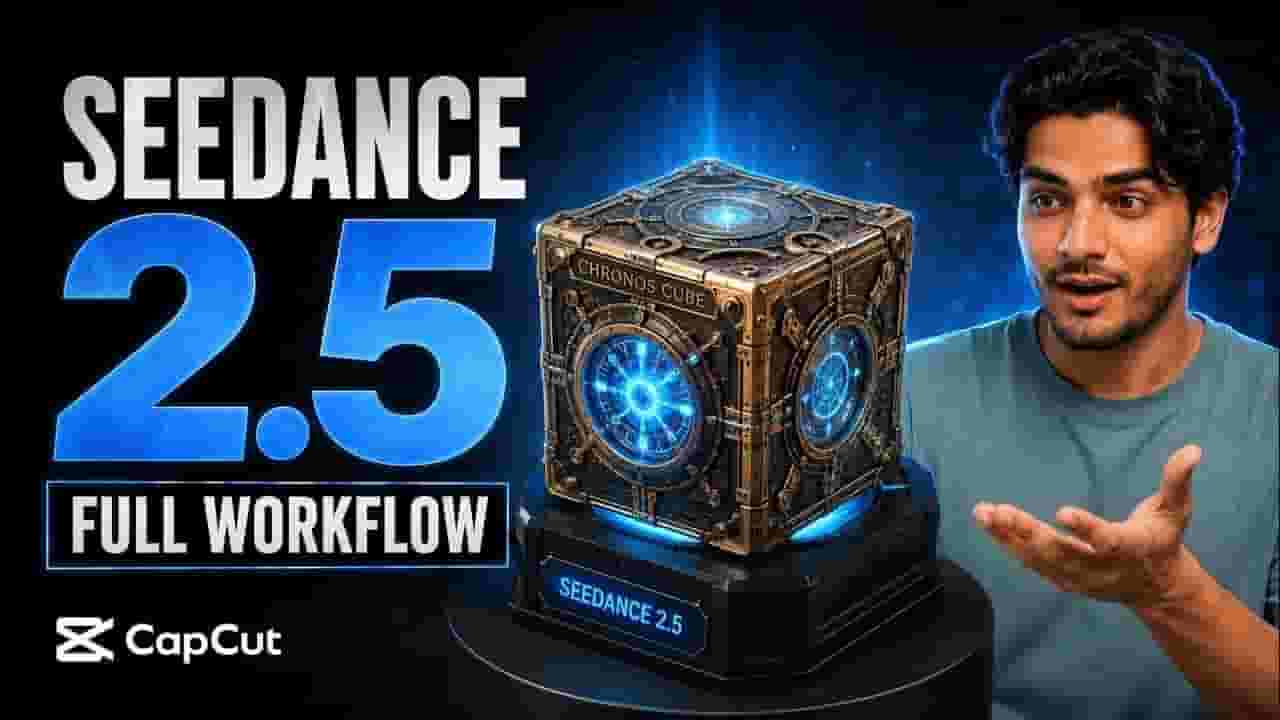
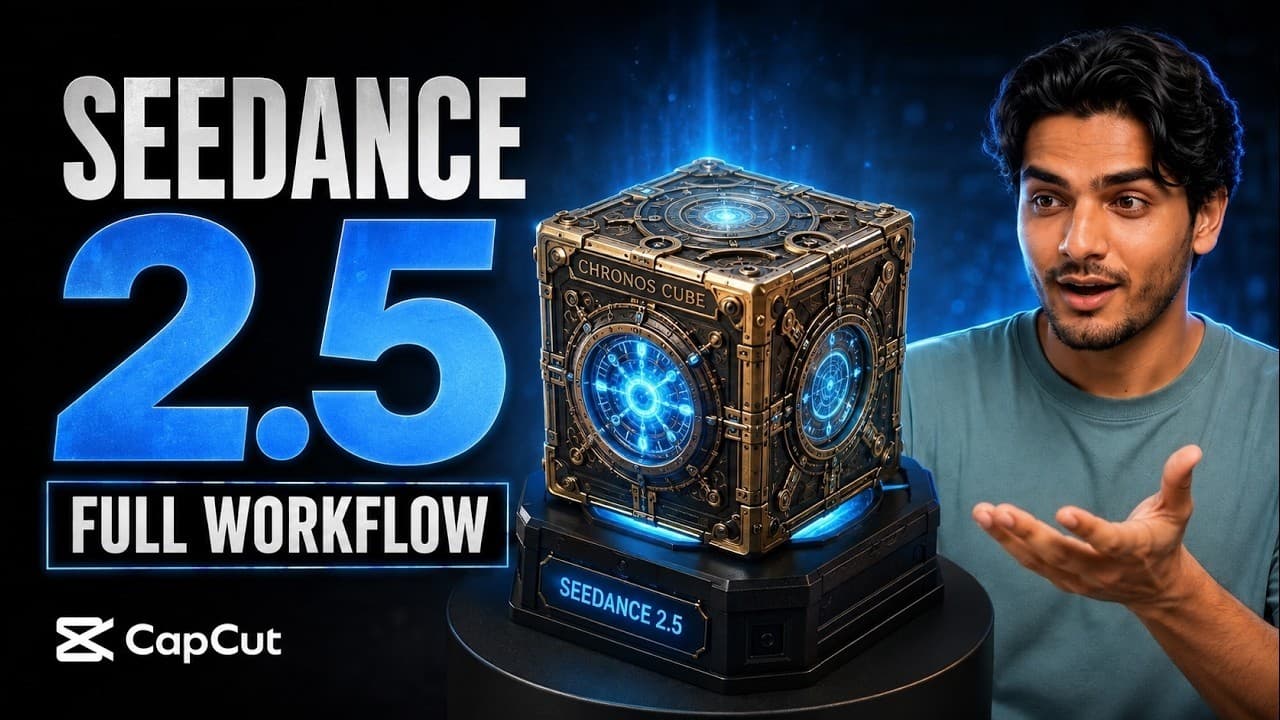
Download CapCut PC: https://bit.ly/4g8dCqj Learn how to use the Seedance 2.5 AI Video Generator and AI Video Editor tools inside CapCut PC to create a consistent cinematic AI short film, extend scenes, refine generated footage, and complete the final edit in one desktop workflow. In this step-by-step tutorial, I create a time-travel short film featuring a mysterious artifact called the Chronos Cube. I use CapCut Seedance 2.5 that now supports 1080p video generation. I use multiple visual references to preserve the cube’s design, generate a native 30-second narrative scene, continue the story with AI Extend, and complete the project using Edit Pilot and CapCut PC’s multi-track timeline. You’ll see how to: - Access CapCut PC through the official OneLink - Open AI Video and select Seedance 2.5 - Upload object and environment reference images - Control subject design, lighting, camera movement, and scene style - Generate a native 30-second cinematic sequence - Maintain object and environment consistency - Extend the story naturally with AI Extend - Use Edit Pilot for conversational timeline changes - Add music, titles, transitions, color adjustments, and pacing - Export the completed AI short film directly from CapCut PC The main advantage is not simply the cost of one generation. A more controllable workflow can reduce failed renders, unnecessary full regenerations, manual clip stitching, revision rounds, and total production time. The goal is to create more usable footage while improving final output quality and overall production efficiency. Everything shown in this tutorial is completed inside CapCut PC, from AI generation and scene extension to multi-track editing and final export. ### Chapters 0:00 Fixing AI Video Consistency 0:24 CapCut PC AI Video Workspace 0:31 Seedance 2.5 Omni Reference Setup 0:43 Uploading Object References and Mood Board 1:10 Prompt and Generation Settings 1:29 Reviewing the First Cinematic Shot 1:46 Continuing the Scene with AI Extend 2:37 Transforming the 1920s Scene into the 1980s 3:43 Adding a Cinematic Title Graphic 4:04 Editing with CapCut Edit Pilot 4:28 Adding Cinematic Music and Audio Fades 4:45 Final AI Short Film Result 5:07 Export Settings and Complete Workflow 5:32 Download CapCut PC and Try It Yourself Comment “Seedance 2.5” if you would like the prompts and reference-image checklist used for the Chronos Cube project. What kind of AI short film would you create with this workflow? Share your idea in the comments, and remember to like and subscribe for more AI video tutorials. #Seedance25 #AIVideoGenerator #AIVideoEditor #AIVideo #CapCutPC #AiVideoMaker #AiGeneratedVideo
About YouTube Real-Time View Count
With SocialCounts.org’s view counter, track your YouTube video’s live view count and YouTube likes count in real time with fast, reliable updates.
Watch every YouTube video live view count rise with our real-time YouTube views tracker—built for accuracy and minimal delay.
Follow YouTube real time views as they happen, using our dedicated view counter for YouTube videos.
Get up-to-date live view count on YouTube and see real-time growth with SocialCounts.org’s smart tracking tools.
Embed Widget
Parameters:
fullscreen=true- Fullscreen countergraph=true- Live graph chartcounter=0/1/2- Select counter (0=likes, 1=views, 2=comments)
URL
Click to copy the embed URL to your clipboard