

0
likes
0
comments
daily view 0
monthly view 0
Live Analytics
Comments 0
How to Live Stream in 4K or 2K resolution to YouTube Analytics Table
Income Estimates for How to Live Stream in 4K or 2K resolution to YouTube
Based on this YouTube video's total view count of 234 views and industry-standard rates, the estimated total earning is $0 - $0 through ad revenue. Historical data is not yet available to calculate daily, weekly, or monthly averages.
About How to Live Stream in 4K or 2K resolution to YouTube
Explore How to Live Stream in 4K or 2K resolution to YouTube with 234 views, 0 likes, and 0 comments. Experience the impact of this video content that has captured audience attention.
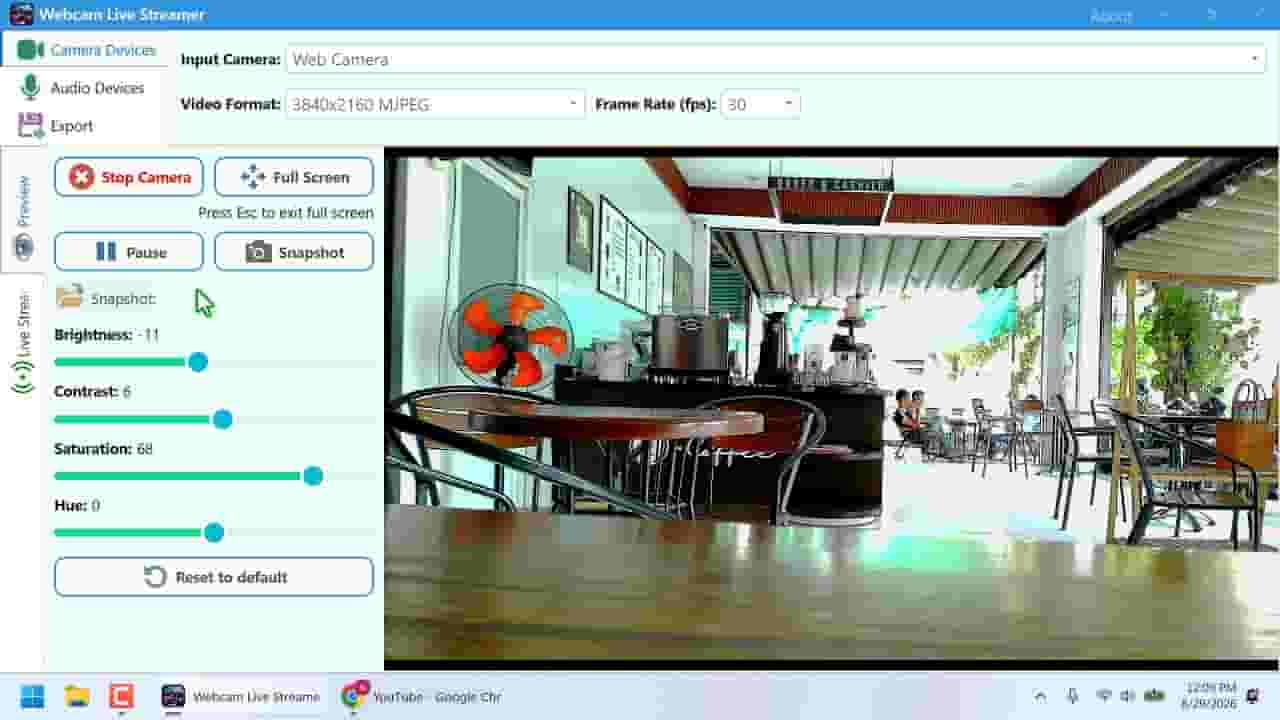
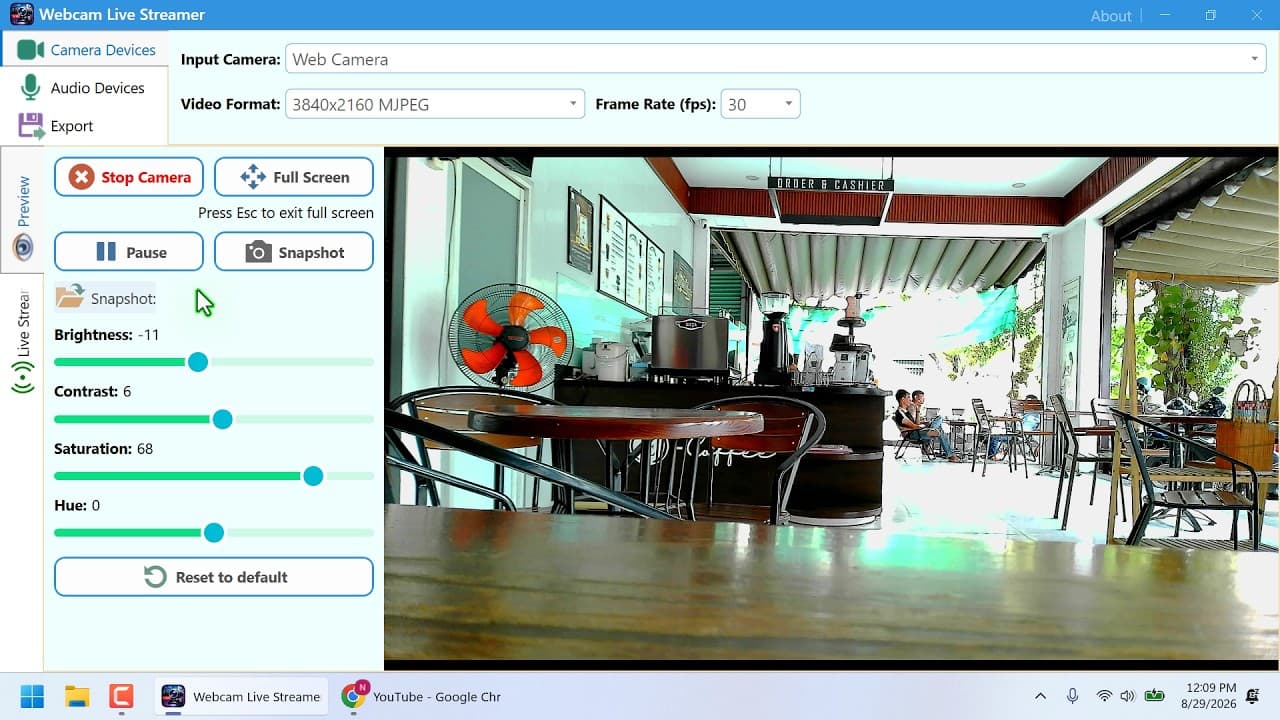
Live streaming in 4K (2160) or 2K (1440p) to YouTube can dramatically improve image quality, making your content sharper and more professional. Whether you are streaming gaming sessions, tutorials, live events, webcams, or pre-recorded videos, choosing the right resolution, encoder, bitrate, and network connection is essential for a stable broadcast. ## 1. Check Your Camera or Video Source Before starting, make sure your camera, screen capture source, or video file supports the resolution you want to stream. For **4K streaming**, use a source with a resolution of 3840 × 2160. For **2K streaming**, 2560 × 1440 is a common choice. If your original video is only 1080p, simply setting the streaming output to 4K will not create genuine 4K detail. For camera streaming, also check whether the camera can deliver 4K or 1440p at your desired frame rate, such as 30 or 60 FPS. ## 2. Configure Your YouTube Live Stream Create a live stream in YouTube Studio and configure your stream settings. You will generally need a **stream URL and stream key** when using third-party streaming software. Select the appropriate output resolution in your streaming application. For example: * **2K:** 2560 × 1440 * **4K:** 3840 × 2160 * **30 FPS:** Suitable for tutorials, presentations, and many live events * **60 FPS:** Ideal for gaming and fast-moving content Your final stream quality depends on both the source and encoder settings. ## 3. Choose the Right Video Encoder Encoding 4K video requires considerably more processing power than 1080p. A software encoder can use significant CPU resources, while hardware encoding can move much of the workload to your GPU. Modern systems may support hardware encoding through technologies such as NVIDIA NVENC, AMD hardware encoding, or Intel Quick Sync. Depending on your hardware and software, you may also have access to codecs such as **H.264, H.265, or AV1**. For maximum compatibility with live streaming platforms, H.264 remains a practical choice. AV1 can provide excellent compression efficiency when supported by your hardware and streaming workflow. ## 4. Use a Sufficient Upload Speed A high-resolution stream requires a reliable upload connection. 4K streaming can consume substantially more bandwidth than 1080p, particularly at higher frame rates. Do not use your connection's theoretical maximum as your target. Leave some bandwidth available for other network activity and overhead. A wired Ethernet connection is often preferable to Wi-Fi for demanding live streams. ## 5. Test Before Going Live Always perform a test before an important broadcast. Check the video quality, audio synchronization, dropped frames, CPU/GPU usage, and network stability. If you experience dropped frames, reduce the bitrate or resolution. If your computer struggles with encoding, consider hardware acceleration or reduce the frame rate. ## 6. Use Dedicated Streaming Software A dedicated **Live Streaming Video Recorder** can simplify the entire process by combining video sources, configuring encoding settings, and sending the resulting stream to YouTube. With the right software, you can prepare **2K or 4K output**, select hardware acceleration when available, configure H.264 or other supported codecs, and manage streaming settings from one interface. ## Conclusion Streaming in 4K or 2K to YouTube requires more than selecting a high resolution. Your camera or source, encoder, GPU/CPU, bitrate, and internet connection all need to work together. Start by testing your hardware and network, choose appropriate encoding settings, and monitor your stream before going live. With a capable computer and reliable connection, **2K and 4K YouTube live streaming** can deliver a much sharper and more professional viewing experience.
About YouTube Real-Time View Count
With SocialCounts.org’s view counter, track your YouTube video’s live view count and YouTube likes count in real time with fast, reliable updates.
Watch every YouTube video live view count rise with our real-time YouTube views tracker—built for accuracy and minimal delay.
Follow YouTube real time views as they happen, using our dedicated view counter for YouTube videos.
Get up-to-date live view count on YouTube and see real-time growth with SocialCounts.org’s smart tracking tools.
Embed Widget
Parameters:
fullscreen=true- Fullscreen countergraph=true- Live graph chartcounter=0/1/2- Select counter (0=likes, 1=views, 2=comments)
URL
Click to copy the embed URL to your clipboard