

76
likes
49
comments
daily view 0
monthly view 0
Live Analytics
Comments 0
BlueBomb Wii Homebrew Method from Linux Virtualbox VM Analytics Table
Income Estimates for BlueBomb Wii Homebrew Method from Linux Virtualbox VM
Based on this YouTube video's total view count of 5.01K views and industry-standard rates, the estimated total earning is $4 - $10 through ad revenue. Historical data is not yet available to calculate daily, weekly, or monthly averages.
About BlueBomb Wii Homebrew Method from Linux Virtualbox VM
Explore BlueBomb Wii Homebrew Method from Linux Virtualbox VM with 5,014 views, 76 likes, and 49 comments. Experience the impact of this video content that has captured audience attention.
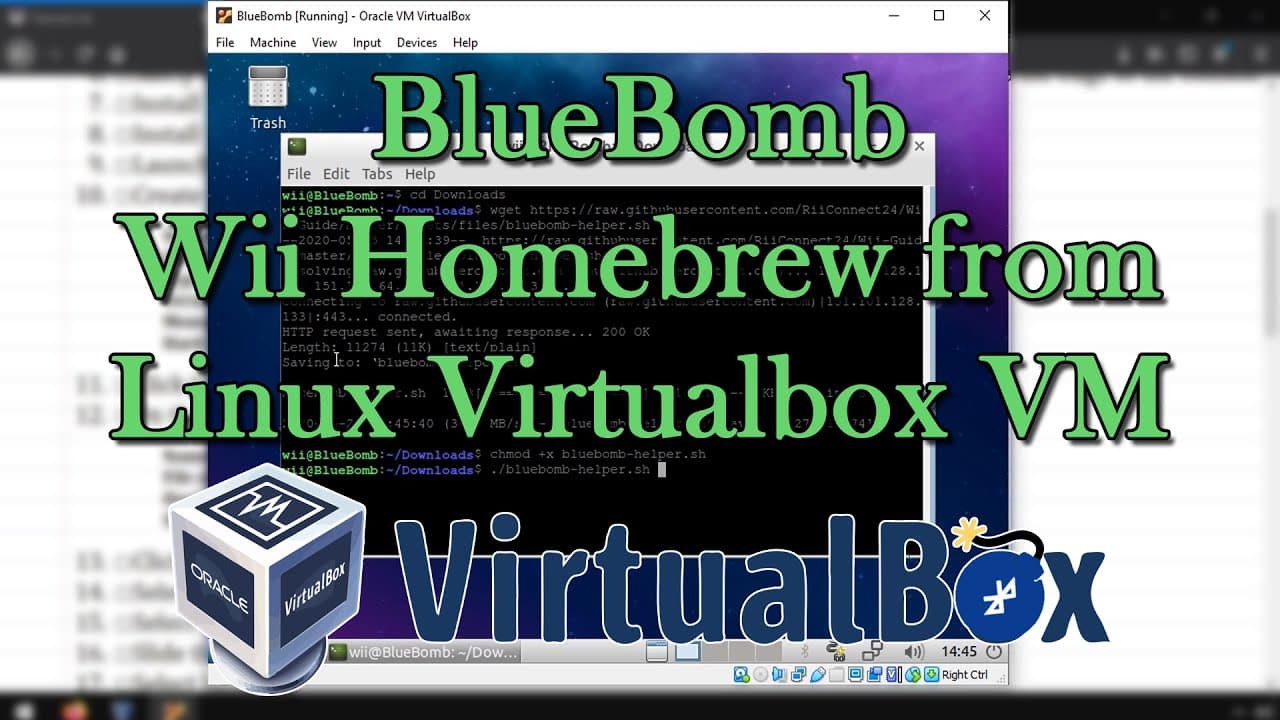
#Wii #HomeBrew #VirtualBox #Lubuntu Full steps can be found at https://i12bretro.github.io/tutorials/0098.html Setting up the Virtual Machine - A USB flash drive (any size, the file is about 2 MB) https://amzn.to/3wkR5ju - A USB Bluetooth adapter compatible with Linux https://amzn.to/3CUf6iN Setting up the Virtual Machine 01. Download VirtualBox and VirtualBox Extension Pack https://www.virtualbox.org/wiki/Downloads 02. Download a Linux Distro (I'm using Lubuntu x86) https://cdimage.ubuntu.com/lubuntu/releases/18.04.5/release/ 03. Download the BootMii installer https://bootmii.org/download/ 04. Format the USB flash drive to the FAT32 filesystem - This will erase all data on the drive, make sure you select the correct drive and that it doesn't contain anything important 06. Copy boot.elf from the downloaded hackmii_installer_v1.2.zip and paste it on the root of the USB flash drive 07. Safely remove the flash drive and insert it into the Wii using the USB port closest to the edge of the console 08. Install VirtualBox 09. Install the VirtualBox Extension Pack 10. Launch VirtualBox 11. Create a New VM by selecting Machine ≫ New Name: BlueBomb Machine Folder: C:\VMs Type: Linux Version: Ubuntu (32-bit) Memory Size: 512 MB Hard disk: Create a virtual hard disk now 12. Click Create 13. On the Create Virtual Hard Disk dialog Name the virtual disk image BlueBomb.vdi File size: 5 GB Hard disk file type: VDI Storage on physical hard disk: Dynamically Allocated 14. Click Create 15. Select the VM and Click Settings 16. Select Display 17. Slide the Video Memory to 128 MB 18. Select Network 19. Set the attached to dropdown to Bridged Adapter 20. Select Storage 21. Click on the CD-ROM drive 22. Select the disc dropdown to the right ≫ Choose a virtual optical disc file... 23. Browse to and select the downloaded Linux .iso file 24. Click OK 25. Make sure the BlueBomb VM is selected and click Start ≫ Normal 26. Follow the prompts to install the OS 27. Update the Linux distro by running the following commands: sudo apt-get update sudo apt-get upgrade sudo apt-get clean 28. Install the required packages to run VirtualBox Guest Additions by running the following commands: sudo apt-get install build-essential dkms linux-headers-$(uname -r) 29. Select Devices ≫ Insert Guest Additions CD image... 30. Right click on the disc on the desktop ≫ Open in Terminal 31. Run the following command to install VirtualBox Guest Additions: sudo sh ./VBoxLinuxAdditions.run 32. Once the Guest Additions have installed reboot the VM from the GUI or by running the reboot command in terminal 33. After the VM reboots, login 34. Plug the USB Bluetooth dongle into the host computer 35. Select Devices ≫ USB and select the Bluetooth USB dongle 36. If this worked correctly the Bluetooth device should now display in the VM 37. Select Preferences ≫ Bluetooth Manager to test that the VM now has Bluetooth capability Downloading BlueBomb and Executing the Script 01. Launch Terminal inside the VM 02. Execute the following commands to change directory into Downloads and download the BlueBomb script cd Downloads https://raw.githubusercontent.com/RiiConnect24/Wii-Guide/master/assets/files/bluebomb-helper.sh chmod +x bluebomb-helper.sh 03. To execute the script enter the following command: ./bluebomb-helper.sh 04. The BlueBomb script will ask if this is a Wii or Wii Mini 05. It will then ask for the region (if Wii Mini) or the Wii Menu version (if Wii), enter the requested information ≫ Press Enter 06. Type yes to proceed ≫ Press Enter 07. At this point you will either get "Waiting to accept" or the error "Failed to power on device: -1" 08. If you get the error press Ctrl+C to cancel the script and re-run it by pressing the up arrow and pressing Enter (It took me 2 tries) 09. Power on the Wii but don't pair any WiiMotes with it 10. Press the pair controller button the Wii console once every 2 or 3 seconds until the BlueBomb script makes a connection and starts pushing the payload over the Bluetooth connection 11. Once completed the Wii will be at the HackMii Installer screen 12. Wait for about a minute and it will prompt you to Press 1 to continue 13. Pair a WiiMote with the console as normal and press 1 14. Press A to Continue 15. Using the D-pad, scroll up to Install the Homebrew Channel ≫ Press A 16. Select Yes, continue ≫ Press A 17. Select Exit ≫ Press A ....Full steps can be found on GitHub [link at the top] ### Connect with me and others ### ★ Discord: https://discord.com/invite/EzenvmSHW8 ★ Reddit: https://reddit.com/r/i12bretro ★ Twitter: https://twitter.com/i12bretro
About YouTube Real-Time View Count
With SocialCounts.org’s view counter, track your YouTube video’s live view count and YouTube likes count in real time with fast, reliable updates.
Watch every YouTube video live view count rise with our real-time YouTube views tracker—built for accuracy and minimal delay.
Follow YouTube real time views as they happen, using our dedicated view counter for YouTube videos.
Get up-to-date live view count on YouTube and see real-time growth with SocialCounts.org’s smart tracking tools.
Embed Widget
Parameters:
fullscreen=true- Fullscreen countergraph=true- Live graph chartcounter=0/1/2- Select counter (0=likes, 1=views, 2=comments)
URL
Click to copy the embed URL to your clipboard