

16
likes
7
comments
daily view 0
monthly view 0
Live Analytics
Comments 0
How to Send Emails from Excel - Tutorial Analytics Table
Income Estimates for How to Send Emails from Excel - Tutorial
Based on this YouTube video's total view count of 3.81K views and industry-standard rates, the estimated total earning is $3 - $8 through ad revenue. Historical data is not yet available to calculate daily, weekly, or monthly averages.
About How to Send Emails from Excel - Tutorial
Explore How to Send Emails from Excel - Tutorial with 3,813 views, 16 likes, and 7 comments. Experience the impact of this video content that has captured audience attention.
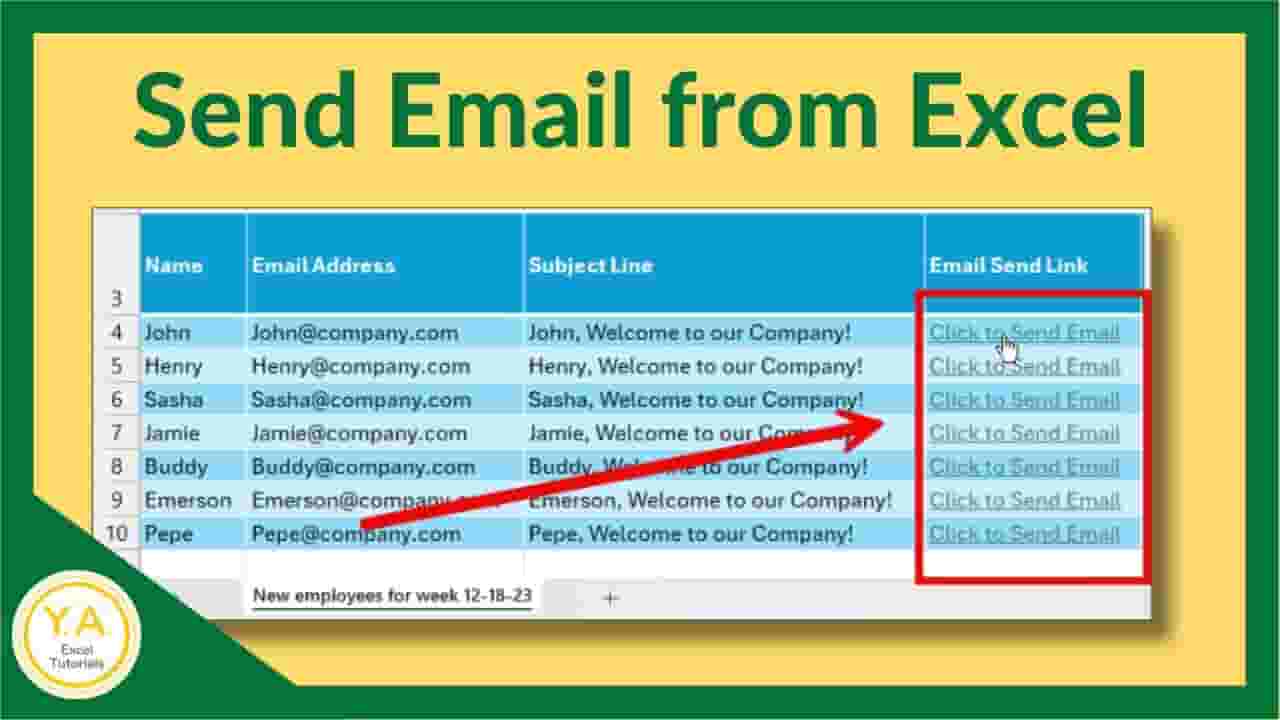
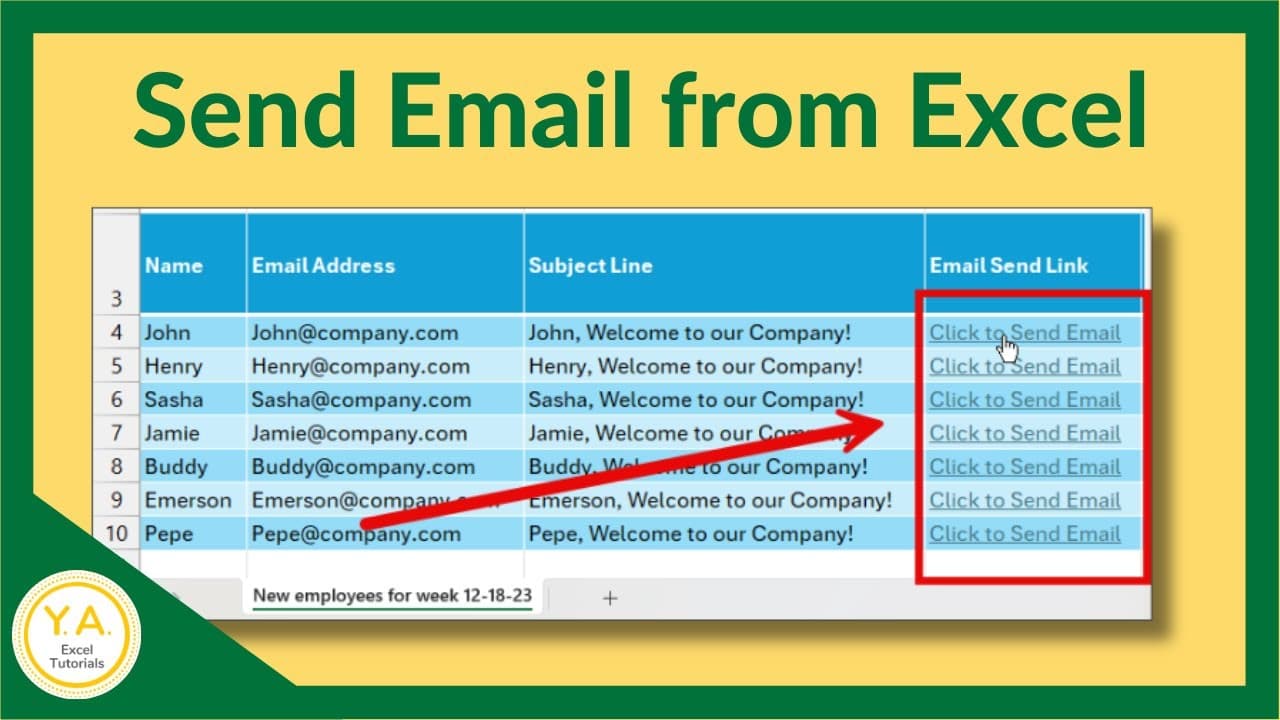
In this Excel tutorial, you'll learn how to use the HYPERLINK function to send emails directly from Excel. Best for short, standardized communications with your employees, clients, students, etc., including email links in your spreadsheets can help you save time while maintaining consistency in communications. We'll walk you through the steps of setting up your spreadsheet, creating a personalized subject line, and crafting the body of your email. You'll also learn how the HYPERLINK function works, its arguments, and how to use it to send emails. We'll also cover important points to be aware of, such as character limits and triggering line breaks in the body of your email. Also, because the formula we used in the video was a bit convoluted, I’m including it here. Just replace the cell references with the corresponding cells in your spreadsheet: =HYPERLINK("mailto:"&B4&"?subject="&C4&"&body="&$H$5,"Click to Send Email") FYI: Sometimes, the formatting is a bit weird when you copy and paste into Excel from a different program, so you may also need to retype the quotation marks. Make sure to visit this video's sponsor, Connecteam, for a super easy solution to your employee scheduling (among other work solutions!). Have 10 users or less??? - it's FREE to use: https://yacostasolutions.com/connecteamya If you liked this, make sure to get your FREE pdf list of top Excel keyboard shortcuts: https://yacostasolutions.com/newsletter/ *FYI: This tutorial was created using the desktop version of Excel in Microsoft 365. You can upgrade to this version here: https://amzn.to/302tWl4 The screen recording + editing was done using Techsmith Camtasia. You can check it out here: https://amzn.to/40uC4HL Thanks for watching this Microsoft Excel tutorial and, don’t forget, if you like this video, please “Like” and “Share” with your friends – it really helps us out 😊 To catch our Excel tutorials as they come out, subscribe to this channel by clicking: goo.gl/t7VrWZ Thanks! *DISCLAIMER: This video description contains affiliate links, which means that if you click on one of the product links, I’ll receive a small commission. As an Amazon Associate I earn from qualifying purchases. This helps support the channel and allows us to continue to make tutorials like this. Thank you for your support! #ExcelTutorial #YAcostaTutorials
About YouTube Real-Time View Count
With SocialCounts.org’s view counter, track your YouTube video’s live view count and YouTube likes count in real time with fast, reliable updates.
Watch every YouTube video live view count rise with our real-time YouTube views tracker—built for accuracy and minimal delay.
Follow YouTube real time views as they happen, using our dedicated view counter for YouTube videos.
Get up-to-date live view count on YouTube and see real-time growth with SocialCounts.org’s smart tracking tools.
Embed Widget
Parameters:
fullscreen=true- Fullscreen countergraph=true- Live graph chartcounter=0/1/2- Select counter (0=likes, 1=views, 2=comments)
URL
Click to copy the embed URL to your clipboard