


7
likes
0
comments
daily view 0
monthly view 0
Live Analytics
Comments 0
How to Photocopy on Canon PIXMA E470 Printer | Complete Beginner's Guide | ij.start.canon Pixma Analytics Table
Income Estimates for How to Photocopy on Canon PIXMA E470 Printer | Complete Beginner's Guide | ij.start.canon Pixma
Based on this YouTube video's total view count of 148 views and industry-standard rates, the estimated total earning is $0 - $0 through ad revenue. Historical data is not yet available to calculate daily, weekly, or monthly averages.
About How to Photocopy on Canon PIXMA E470 Printer | Complete Beginner's Guide | ij.start.canon Pixma
Explore How to Photocopy on Canon PIXMA E470 Printer | Complete Beginner's Guide | ij.start.canon Pixma with 148 views, 7 likes, and 0 comments. Experience the impact of this video content that has captured audience attention.
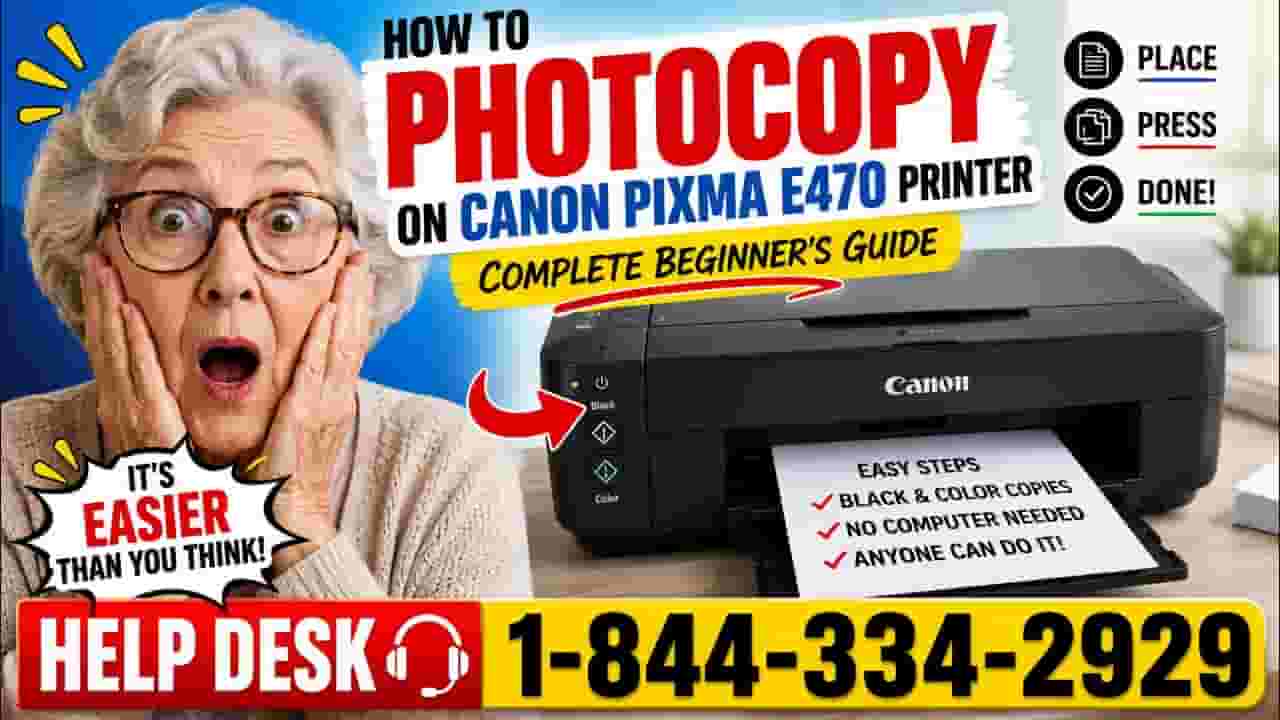
# How to Photocopy on Canon PIXMA E470 Printer | Complete Beginner's Guide Are you wondering how to make a photocopy using your Canon PIXMA E470 printer? Whether you need a black-and-white copy of an important document or a color copy of a photo, the Canon E470 makes the process quick and simple. In this video, we walk you through the exact steps to photocopy documents using your Canon PIXMA E470 printer. The Canon PIXMA E470 is a popular all-in-one wireless printer that offers printing, scanning, and copying features for home and office users. Many first-time users are unaware that they can create copies directly from the printer without connecting it to a computer. This tutorial will help you learn how to use the copy function efficiently. ### Steps Covered in This Video: ✅ Turn on the Canon PIXMA E470 printer ✅ Open the scanner lid properly ✅ Place the document face-down on the scanner glass ✅ Align the document using the scanner guides ✅ Close the scanner lid carefully ✅ Use the Black Copy button for monochrome copies ✅ Use the Color Copy button for color copies ✅ Wait for scanning and printing to complete ✅ Collect your copied document from the output tray The Canon E470 is designed for ease of use and provides reliable copy quality for everyday documents. Whether you're copying school assignments, office paperwork, identification documents, invoices, contracts, forms, or family photos, the built-in copy feature can save time and effort. ### Common Canon E470 Copying Issues Some users may experience problems while copying documents. Here are a few common issues: • Printer not responding when copy buttons are pressed • Blank pages coming out during copying • Poor copy quality or faded copies • Scanner glass alignment problems • Ink cartridge issues affecting copy output • Paper jams during the copy process • Printer displaying error lights or warning messages Most of these problems can be resolved by checking ink levels, cleaning the scanner glass, loading paper correctly, and ensuring the printer is powered on properly. ### Why Use the Canon PIXMA E470 Copy Function? The Canon E470 offers several benefits: • Fast and easy document copying • No computer required • Supports both black and color copies • Compact design for home and office use • Reliable print quality • User-friendly control panel • Affordable printing and copying solution If you own a Canon PIXMA E470, learning how to photocopy documents is one of the most useful skills you can have. This simple process can help you complete everyday tasks quickly without needing additional equipment. ### Need More Canon Printer Help? Our channel provides easy-to-follow printer tutorials, troubleshooting guides, setup instructions, wireless connection help, scanning tutorials, print quality fixes, driver installation guides, and solutions for common Canon printer errors. If this tutorial helped you learn how to photocopy on your Canon PIXMA E470 printer, please support the channel by liking the video, subscribing, and sharing it with others who may need assistance. Thank you for watching, and stay tuned for more Canon printer troubleshooting tips, setup guides, maintenance tutorials, and technical support videos designed to make your printing experience easier and more efficient. #CanonPrinter #CanonE470 #PhotocopyCanon #CanonPIXMA #PrinterTutorial #CopyDocuments #Canon #PrinterHelp #CanonPrinting #WirelessPrinter
About YouTube Real-Time View Count
With SocialCounts.org’s view counter, track your YouTube video’s live view count and YouTube likes count in real time with fast, reliable updates.
Watch every YouTube video live view count rise with our real-time YouTube views tracker—built for accuracy and minimal delay.
Follow YouTube real time views as they happen, using our dedicated view counter for YouTube videos.
Get up-to-date live view count on YouTube and see real-time growth with SocialCounts.org’s smart tracking tools.
Embed Widget
Parameters:
fullscreen=true- Fullscreen countergraph=true- Live graph chartcounter=0/1/2- Select counter (0=likes, 1=views, 2=comments)
URL
Click to copy the embed URL to your clipboard